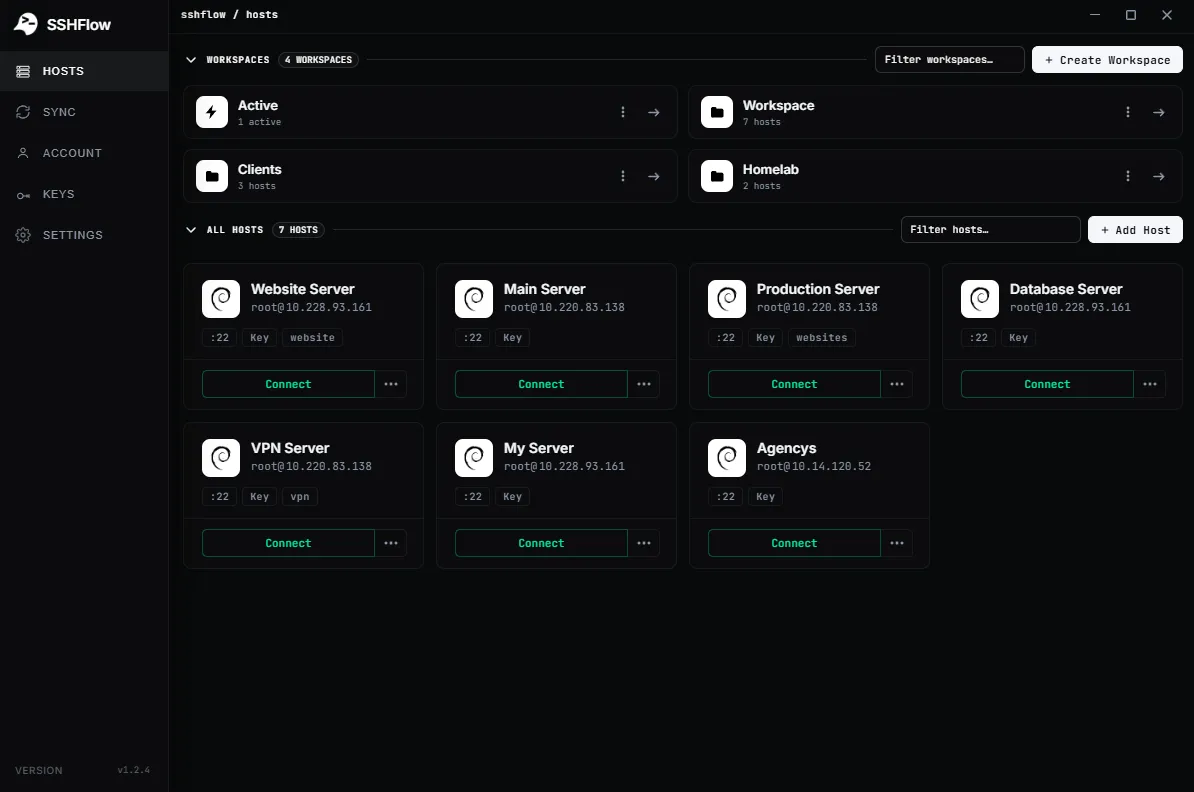
The best PuTTY replacement depends on what you want to improve. For a free Windows client with graphical SFTP, start with Bitvise SSH Client. For modern SSH tabs and split panes, choose Tabby. If your work jumps between a terminal, remote files and code on the same VPS, ShadeTerm offers a more complete Windows workspace. For X11 and remote desktop protocols, consider MobaXterm.
PuTTY itself remains a capable and actively maintained SSH client. You do not need to replace it simply because newer applications have a different interface. This guide compares ten genuine terminal/SSH options, explains their trade-offs and shows how to migrate sessions and SSH keys without shortcuts that compromise security.
Best PuTTY alternatives: quick picks
Need a recommendation without reading ten reviews? Start with the bottleneck in your current PuTTY workflow. These are use-case recommendations, not rankings derived from a performance benchmark.
Free SSH + graphical SFTPBitvise SSH Client
One Windows connection workflow for terminals, files and SSH tunnels.
Free tabs and split panesTabby
Open-source SSH terminal for Windows, macOS and Linux.
VPS development workspaceShadeTerm
Terminals, SFTP, code editing, databases and monitoring per server.
SSH + X11 + remote desktopsMobaXterm
Windows toolkit with automatic SFTP and RDP/VNC support.
Mobile and desktopTermius
Free Starter tier; cloud host sync on paid plans.
Keep PuTTY itselfSuperPuTTY
Put existing PuTTY terminals into a tabbed manager.
If you only need a shell, test Windows Terminal + OpenSSH before installing anything else. If your only problem is file transfer, keeping PuTTY and adding WinSCP may be more sensible than replacing your SSH client.
Why switch from PuTTY — and when to keep it
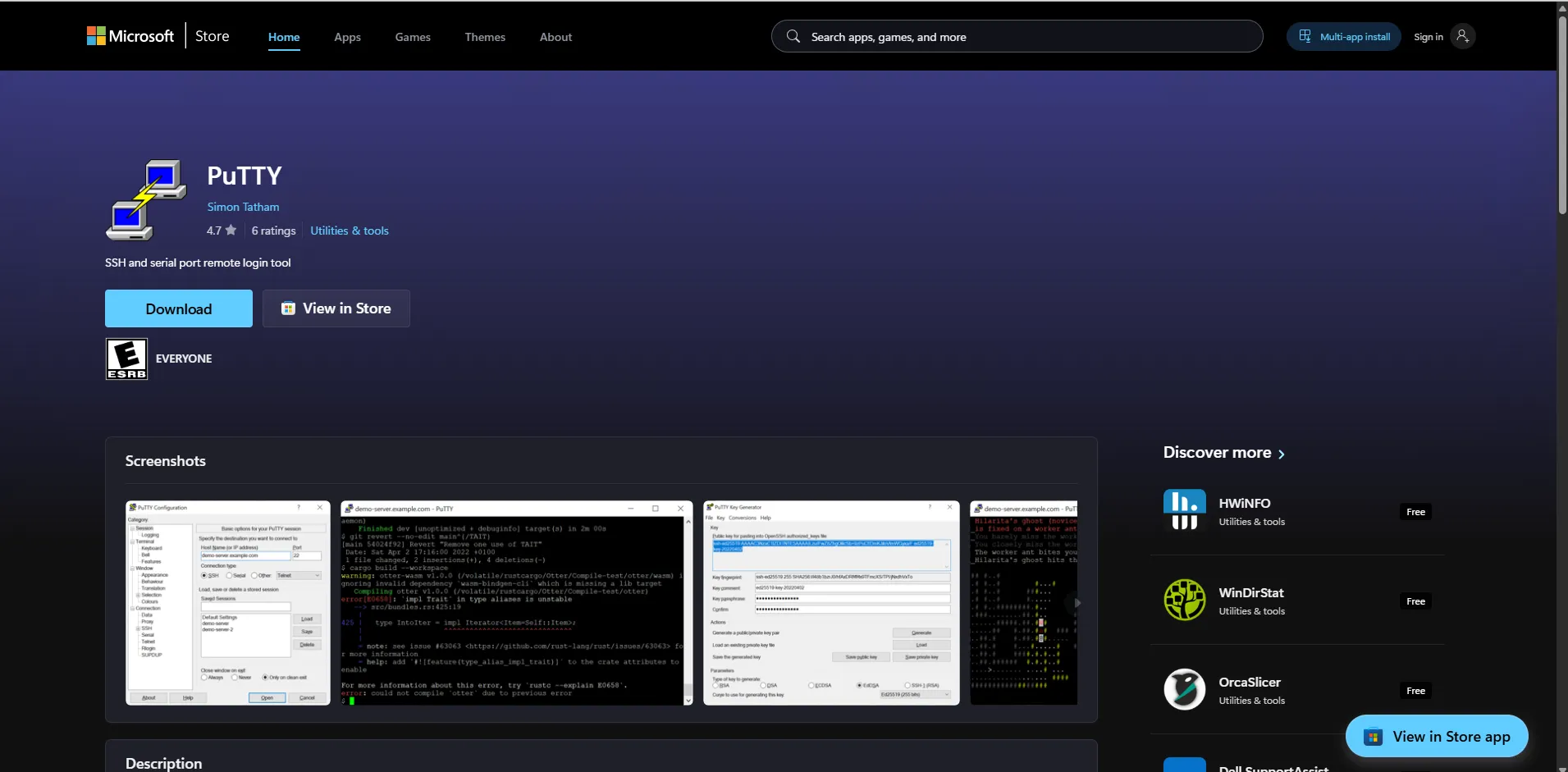
PuTTY is still maintained: version 0.85, released August 16, 2026, addressed multiple security issues. It remains a free, open-source option with saved sessions, SSH tunneling, serial access, PuTTYgen, Pageant, PSCP and PSFTP. A replacement is justified when a missing workflow feature matters, not just when the interface looks dated.
PuTTY is the baseline in this comparison. It uses separate connection windows and companion command-line transfer tools.
Tabs and panes: use Tabby, Solar-PuTTY or SuperPuTTY if separate PuTTY windows are your main annoyance.
Graphical files: Bitvise and MobaXterm integrate file browsing. WinSCP can complement PuTTY without replacing it.
Server development: ShadeTerm is intended for combining terminal, editor, files, monitoring and databases per server.
Other protocols: MobaXterm covers X11 and RDP/VNC workflows. PuTTY itself remains suitable for SSH and serial-focused tasks.
Start from the official PuTTY website for the latest release, rather than assuming a fork is as current as upstream.
How we selected these 10 PuTTY alternatives
We selected these ten applications to cover different PuTTY replacement scenarios: free GUI SFTP, terminal tabs, server-development workspaces, cross-device access, native command-line SSH, portable Windows clients and enterprise terminal automation. A tool was not chosen solely because it appeared in another “best of” list.
Feature descriptions, platform support and published pricing were checked against official developer documentation and vendor pages on November 1, 2026. Our comments about suitability are editorial judgments based on those documented capabilities. We have not conducted a controlled ten-client test of latency, RAM consumption, transfer speed, reconnection reliability or vulnerability resistance, and we do not publish invented timings or review scores.
How to interpret the tables: “GUI SFTP” refers to a graphical remote file browser, not simply support for the SFTP protocol. “Tabs” describes application-window management; it does not mean remote-shell persistence. Prices are the vendor's published starting prices or plans and may change.
For an actual hands-on comparison, we recommend recording application and OS versions, authenticating to the same OpenSSH server with an Ed25519 key, testing a non-default port, transferring an identical file set and repeating each measurement. Such results will be added only after they have been recorded.
PuTTY alternatives comparison table
The list is ordered for common replacement use cases, not by a universal speed or security score. Windows is the main focus, with desktop cross-platform options included where appropriate.
Client
Platforms
Tabs
GUI SFTP
Cost
Best for
Bitvise
Windows
Session UI
Yes
Free
SSH and file transfers
Tabby
Win / Mac / Linux
Yes
Plugin / integration
Free, open source
Tabs and splits
ShadeTerm
Windows
Per-server tabs
Yes
Trial → $4.99/mo
Developer workspaces
MobaXterm
Windows
Yes
Yes
Home free / Pro paid
SSH, X11, RDP/VNC
Termius
Desktop + mobile
Yes
Yes
Starter free / Pro paid
Access across devices
Solar-PuTTY
Windows
Yes
Vendor-documented
Free
Portable tabbed SSH
Windows Terminal + OpenSSH
Windows
Yes
No, CLI only
Free
Scripts and CLI SSH
SuperPuTTY
Windows
PuTTY wrapper
External tools
Free, open source
Keep PuTTY and add tabs
WindTerm
Win / Mac / Linux
Yes
Yes
Free
Cross-platform SSH/SFTP
SecureCRT
Win / Mac / Linux
Yes
SecureFX separately
Paid from $119
Network automation
Baseline: PuTTY itself is free, supports Windows and Unix-like systems, has no native tabbed workspace and provides PSFTP/PSCP as separate command-line tools. It may still be the right answer if you want minimal, familiar SSH access.
1. Bitvise SSH Client — Best free GUI SFTP and SSH
WindowsFree for personal and commercial use
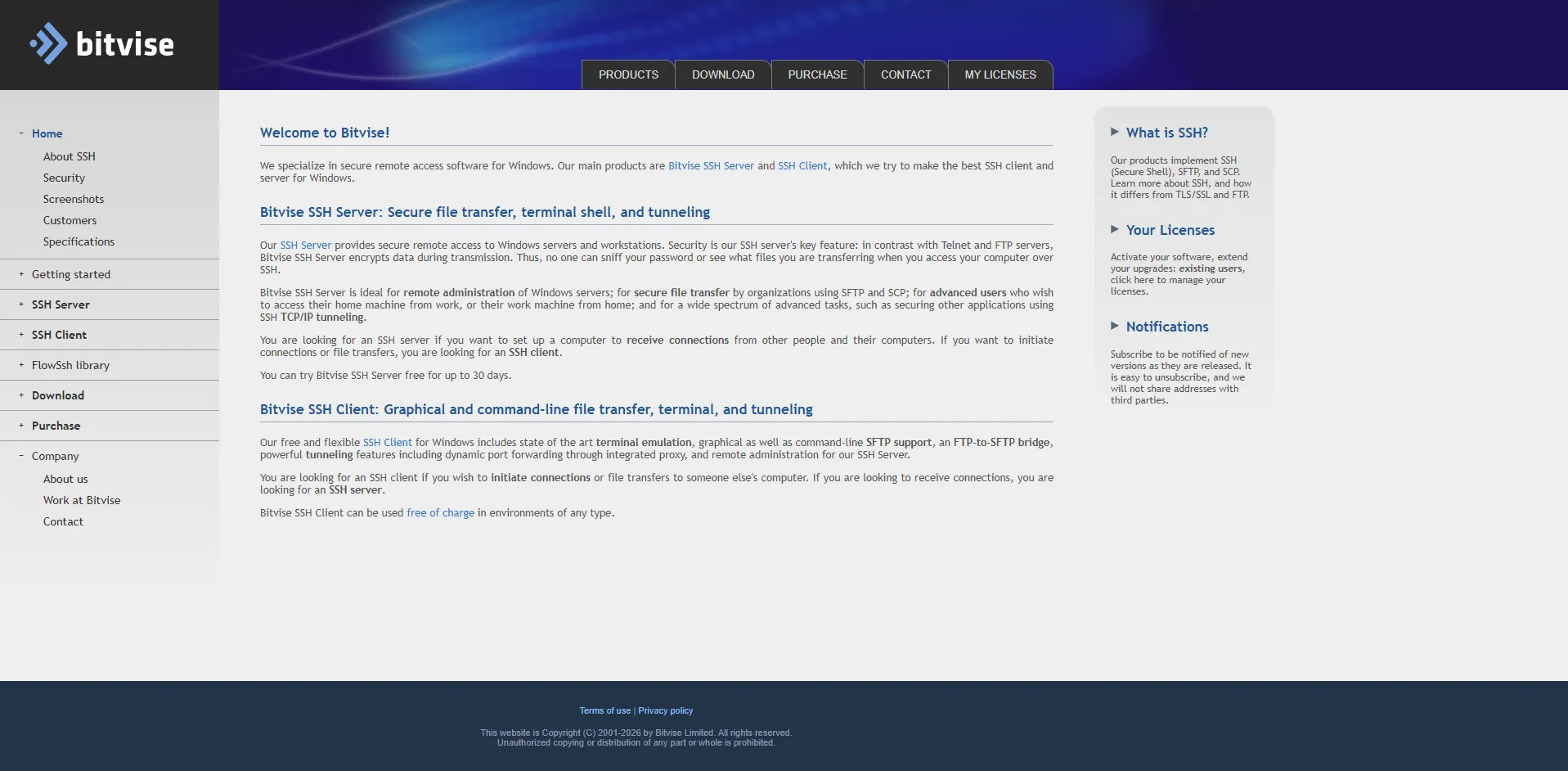
Bitvise solves the most practical limitation of stock PuTTY: needing a separate graphical file-transfer program. Its Windows client combines an SSH login manager, terminal access, an SFTP file-transfer window and detailed tunneling controls. If you manage one or several Windows-accessed Linux servers and want a free GUI, this is the clearest place to start.
Compared with PuTTY: Unlike PuTTY, Bitvise presents terminal access and SFTP as one coordinated workflow. Unlike an editor-centered workspace, it prioritizes reliable authentication, transfers and port forwarding. The client is free even in commercial environments; its server software has separate licensing.
Bitvise SSH Client interface image from ShadeTerm’s existing comparison assets. Images are illustrative and are not evidence of a new controlled test.
Strengths
Graphical SFTP client and command-line SSH/SFTP tools
Extensive SSH tunneling and authentication options
No client fee for business or personal use
Trade-offs
Windows only
Does not bundle a per-server code editor and monitoring dashboard
More configuration-heavy than one basic PuTTY window
Verdict: For administrators who need free graphical SFTP, Bitvise is a stronger recommendation than asking them to pay for a general-purpose workspace.
2. Tabby — Best open-source SSH terminal with tabs
Windows · macOS · LinuxFree / open source
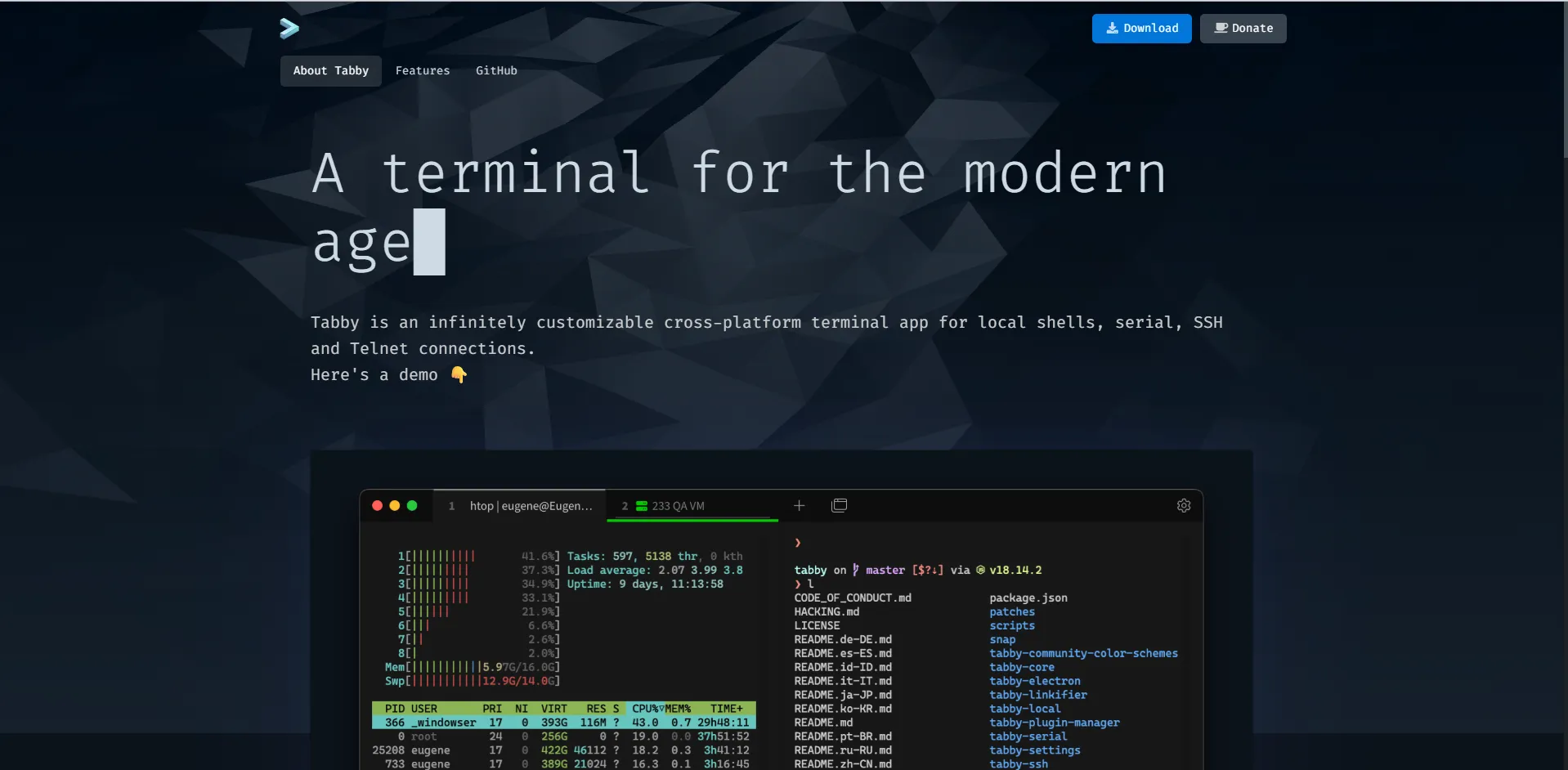
Tabby replaces PuTTY’s separate terminal windows with native tabs, split panes, searchable profiles and configurable shortcuts. It is a terminal application rather than a PuTTY wrapper, and it works across the three major desktop platforms. Its SSH integration includes jump hosts, port forwarding and agent options.
Compared with PuTTY: Choose Tabby when your main complaint about PuTTY is terminal organization. Its SFTP-tab experience is available through integration or a plugin; do not assume that running an external ssh command inside a local shell exposes the same UI features as a Tabby SSH profile.
Tabby interface image from ShadeTerm’s existing comparison assets. Images are illustrative and are not evidence of a new controlled test.
Strengths
Tabs, splits, profiles and flexible keyboard shortcuts
Cross-platform and open source
SSH client with jump-host and agent support
Trade-offs
Not lightweight according to its own project documentation
SFTP browsing depends on the integration/plugin being used
No built-in database and server-monitoring workspace
Verdict: The free choice for readers asking specifically for “PuTTY with tabs,” particularly if they also use macOS or Linux.
3. ShadeTerm — Best for Windows server-development workspaces
Windows 10 / 1117-day trial · $4.99/month thereafter
ShadeTerm is designed for people who revisit the same VPSs throughout the day. Each server acts as its own workspace with terminal tabs, an SFTP browser, code editing, monitoring and database tools. Instead of keeping PuTTY, an SFTP window, an editor and a monitoring page separate, you can work on related tasks from one server view.
Compared with PuTTY: The trade-off is clear: PuTTY and Bitvise remain better value for someone who needs only free SSH or SFTP. ShadeTerm makes sense when editing configuration files, navigating server directories and checking resources are part of the same repeated workflow. It is Windows-only and is not a full replacement for PuTTY’s serial or specialized networking tools.
ShadeTerm Windows server workspace with terminals and related remote-server tools.
Strengths
Server-oriented workspaces with multiple terminals
Integrated SFTP, code editor, databases and monitoring
Designed for repeated VPS and development tasks
Trade-offs
Windows only at present
Subscription after the trial
Not a full RDP, VNC, X11 or serial-console suite
Verdict: ShadeTerm is designed for Windows SSH/SFTP server workspaces, not for RDP, VNC or an integrated Windows X server.
WindowsFree Home / $69 or €49 Professional per user
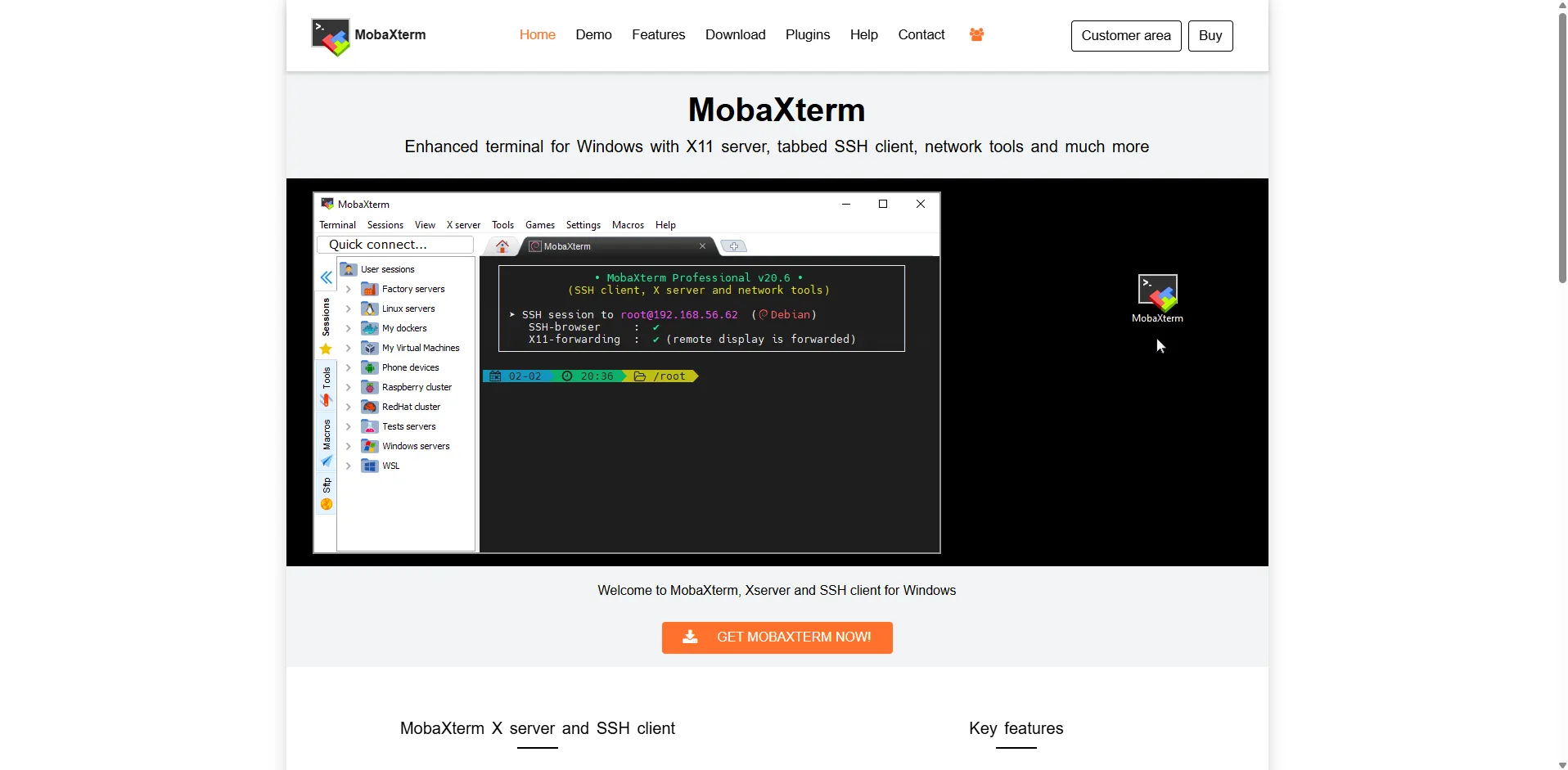
MobaXterm is a full Windows remote-administration toolbox rather than just a terminal. It offers tabbed SSH, an integrated X server, graphical SFTP alongside SSH sessions, Unix-like commands and remote desktop protocols such as RDP and VNC. That breadth matters if your work crosses Linux shells and Windows desktops.
Compared with PuTTY: Home Edition is free but limits saved sessions to 12, SSH tunnels to two and macros to four. Its official license allows an employee to download and install Home Edition individually for work; it does not permit organizational redistribution, centralized deployment or shared company installations. Professional removes the limits and supports deployment.
MobaXterm interface image from ShadeTerm’s existing comparison assets. Images are illustrative and are not evidence of a new controlled test.
Strengths
Automatic SFTP browser and integrated X server
RDP/VNC alongside SSH and Telnet
Portable and installer variants
Trade-offs
Windows only
Home caps: 12 saved sessions, 2 tunnels, 4 macros
Broader and busier than a dedicated SSH terminal
Verdict: If X11 and remote desktops matter, MobaXterm is more appropriate than a tool focused exclusively on SSH terminals.
Windows · macOS · Linux · iOS · AndroidStarter free / Pro $10 per month when billed annually
Termius is a strong choice if your servers must be available from a laptop and phone. Its Starter tier provides SSH, SFTP, a local vault and port forwarding. Pro introduces a personal cloud vault, device synchronization, session logs and snippet automation; these are the reasons to pay rather than basic SSH alone.
Compared with PuTTY: Compared with PuTTY, Termius offers a modern host-focused interface with mobile apps. Compared with Windows-only ShadeTerm, Termius has broader device coverage, while ShadeTerm places more developer panels inside each server workspace. Cloud sync is useful, but it also changes how you manage your connection metadata, so check your team’s policies.
Termius interface image from ShadeTerm’s existing comparison assets. Images are illustrative and are not evidence of a new controlled test.
Strengths
Desktop and mobile support
SFTP and port forwarding on the free Starter tier
Optional cloud synchronization on Pro
Trade-offs
Cross-device syncing requires a paid plan
Not an integrated X11/RDP/VNC suite
Subscription value depends on multi-device usage
Verdict: Recommended if the deciding factor is connecting from multiple device types, not merely opening a terminal on one PC.
6. Solar-PuTTY — Best free portable Windows SSH manager
WindowsFree / proprietary
Solar-PuTTY addresses the most visible PuTTY annoyance: every session having its own window. SolarWinds offers a Windows executable with saved sessions, tabbed connections, support for SSH and file-transfer protocols, and quick access to frequently used hosts. Its vendor also documents auto-reconnect and post-connection scripts.
Compared with PuTTY: It is not the same product as PuTTY and is not open source just because it is free. For someone who needs saved Windows hosts and simple tabs but has no interest in a full server-management environment, the product’s relatively focused interface is appealing.
Solar-PuTTY interface image from ShadeTerm’s existing comparison assets. Images are illustrative and are not evidence of a new controlled test.
Strengths
Tabbed sessions and saved hosts
Runs without a traditional installation
SCP/SFTP support, reconnect and scripts
Trade-offs
Windows only
Proprietary rather than open source
Not designed as a code or database workspace
Verdict: A practical first look when you want free Windows tabs and a portable application.
7. Windows Terminal + OpenSSH — Best command-line replacement
Windows 10 / 11Free / open source
Windows Terminal supplies tabs and split panes; Microsoft OpenSSH supplies the actual SSH connection. They are separate components, which is an important distinction. Together they give developers standard ssh, scp and sftp commands, a plain-text SSH config, public-key authentication and port forwarding without a third-party GUI connection manager.
Compared with PuTTY: This is the simplest migration for readers already comfortable with Linux and macOS terminals. It has no integrated graphical SFTP browser or visual server workspace. A terminal tab is not a persistent remote session by itself: use tmux or a similar server-side multiplexer if disconnections must not end your shell work.
Windows Terminal + OpenSSH interface image from ShadeTerm’s existing comparison assets. Images are illustrative and are not evidence of a new controlled test.
Strengths
Standard SSH config, ssh-agent and key tooling
Windows Terminal tabs and panes
No dedicated proprietary SSH application required
Trade-offs
No built-in graphical SFTP browser
Saved hosts are managed through config files
Editing, databases and monitoring use separate tools
Verdict: For a few connections or scriptable infrastructure work, this may be all you need.
8. SuperPuTTY — Best for keeping PuTTY and adding tabs
WindowsFree / open source
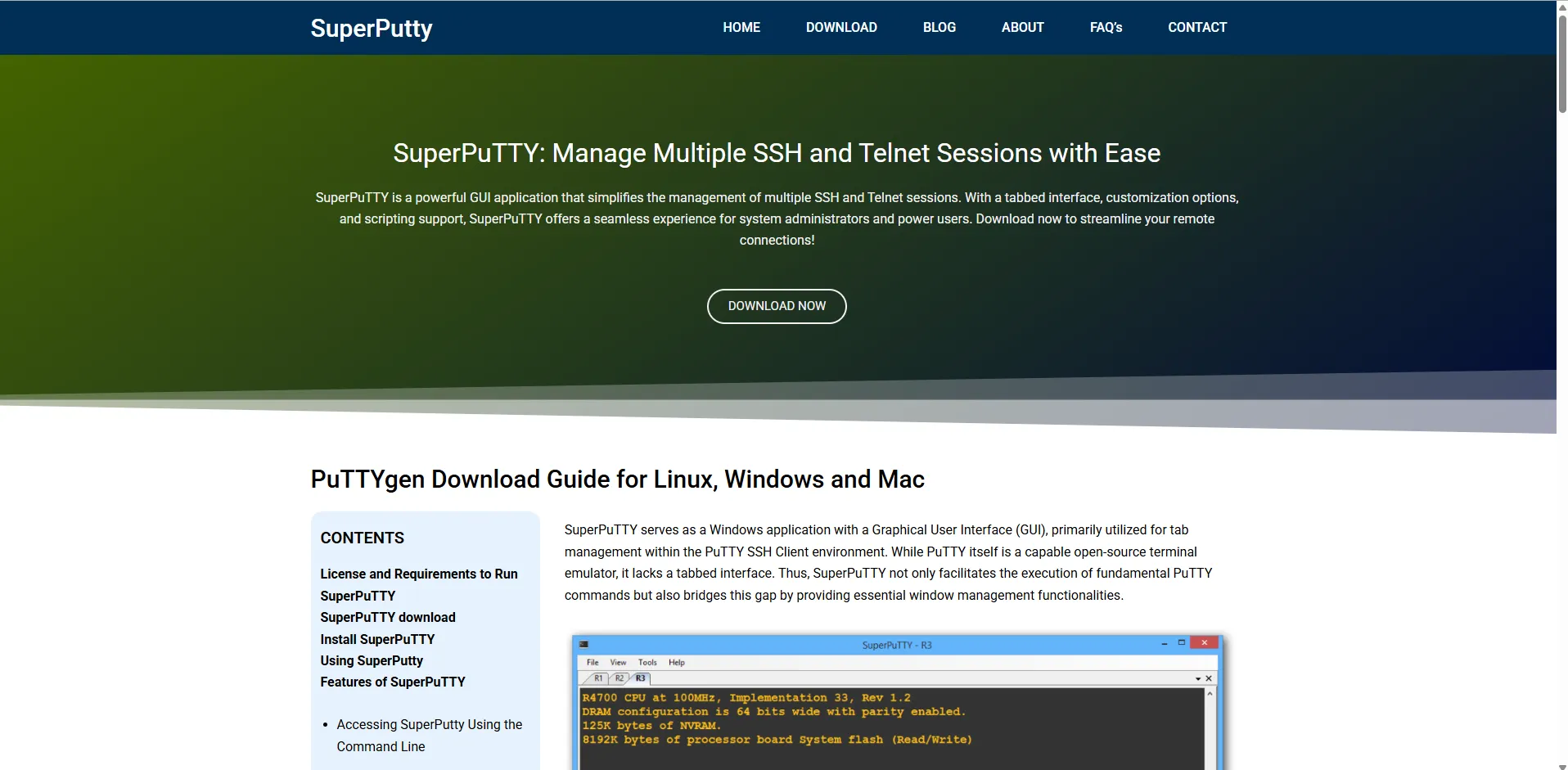
SuperPuTTY is an application that organizes actual PuTTY sessions into tabbed and dockable windows. You keep the underlying PuTTY executable and many of the settings you already know, but manage several terminals in one desktop layout. This makes it a low-disruption choice for long-time PuTTY users.
Compared with PuTTY: It does not turn PuTTY into a complete graphical SFTP editor or monitoring suite. You still need a separate file-transfer workflow. It is also maintained as a separate project, so check both the SuperPuTTY release and the PuTTY executable you are using.
Historical third-party SuperPuTTY interface image (2019), not a new hands-on test. Original image source
Strengths
Keeps the underlying PuTTY terminal
Tabbed and dockable layouts
Free and open source
Trade-offs
Separate PuTTY executable is needed
No native all-in-one graphical SFTP workspace
Two projects to maintain and update
Verdict: For people who want tabs but specifically do not want to change SSH clients, this is more direct than migrating all host settings.
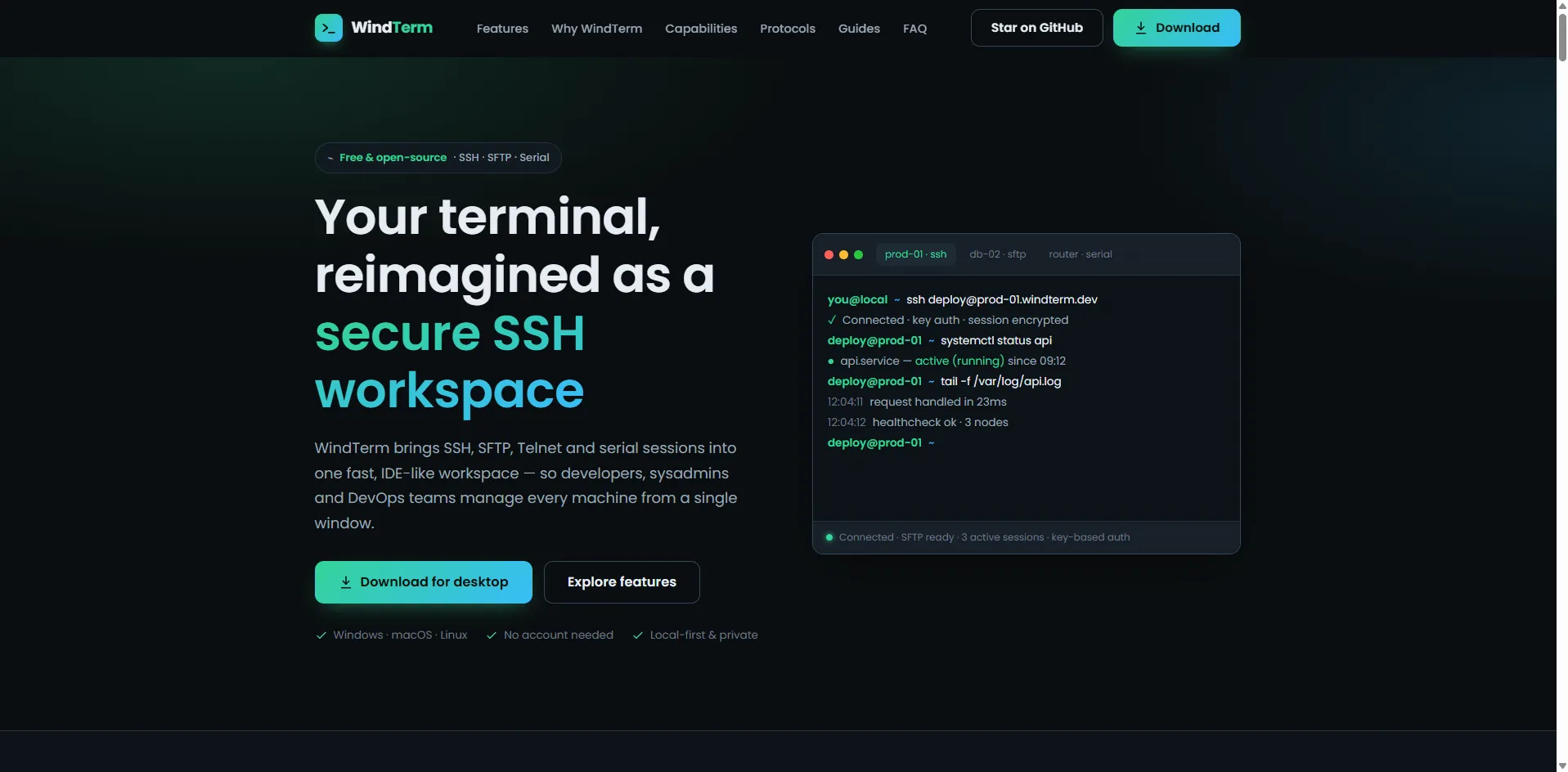
9. WindTerm — Best free cross-platform SSH and SFTP toolkit
Windows · macOS · LinuxFree / partially open source
WindTerm combines terminal sessions with SSH, SFTP, Telnet and serial-related workflows across desktop platforms. It is useful for someone who wants more than a bare SSH terminal without paying a recurring subscription. The official repository provides downloads and describes the project’s licensing model.
Compared with PuTTY: Be precise about “open source.” WindTerm is free for commercial and noncommercial use, but its maintainer describes it as a partially open-source project. Published source files have an Apache-2.0 license subject to the repository’s stated exceptions; that does not mean the entire application is open.
WindTerm product-site preview from the previous ShadeTerm comparison. Not a fresh in-app benchmark screenshot.
Strengths
Cross-platform terminal and session management
Built-in SFTP-related features
Free, including commercial usage
Trade-offs
Only partially open source
No unified mobile host vault
Check the current release, support and update cadence
Verdict: A worthwhile cross-platform alternative when Tabby’s terminal customization is less important than an integrated SSH/SFTP toolkit.
10. SecureCRT — Best for terminal automation and network engineers
Windows · macOS · LinuxPaid: $119 new single license with one year of updates
SecureCRT is aimed at professionals who spend much of their day inside terminal sessions, including people managing network equipment. It provides extensive emulation, saved-session organization, scripting and repeatable terminal workflows. These capabilities can matter more than a modern-looking SSH interface in specialized environments.
Compared with PuTTY: This is a paid client, not an economical alternative for occasional SSH. Its separate SecureFX product handles graphical file transfers: the currently published single-license SecureCRT + SecureFX bundle is $129 with one year of updates. Compare the bundle rather than assuming the base terminal license includes an SFTP GUI.
VanDyke SecureCRT product-page preview from the previous ShadeTerm comparison. Not a capture of a new hands-on test.
Strengths
Rich terminal emulation and scripting
Cross-platform professional SSH workflows
Suited to repeatable network-device tasks
Trade-offs
Paid licenses
Graphical transfers require a separate product or bundle
Excessive for a basic personal SSH connection
Verdict: Choose it when terminal automation and emulation requirements justify the price, not as the default answer for a free PuTTY replacement.
Choosing a PuTTY alternative becomes much easier when you define the task before comparing product names.
You want free Windows SSH and SFTP
Start with Bitvise. If you already trust your PuTTY setup, PuTTY + WinSCP is also a practical free combination.
You want tabs and a customizable terminal
Choose Tabby. For a PuTTY-based workflow with minimal migration, use SuperPuTTY instead.
You maintain several application servers
Look at ShadeTerm if you regularly open logs, edit configuration files, inspect directories and use databases on each VPS.
You use SSH, graphical Linux apps and RDP
MobaXterm is the more fitting category of tool because of its integrated X server and multiple remote protocols.
You use a phone and multiple computers
Termius has mobile applications. Check whether paid synchronization is important enough to justify the recurring cost.
You mostly type SSH commands
Keep OpenSSH and Windows Terminal. Standard config aliases, scp, sftp and ssh-agent may remove the need for a GUI.
Free vs paid PuTTY alternatives: current pricing
Free and paid clients solve overlapping but not identical problems. A free SSH session does not imply a graphical file browser, and a subscription is not justified unless the additional workflow matters.
Software
Published starting cost
What to know
PuTTY / OpenSSH / Tabby / SuperPuTTY
Free
Open-source software; different interfaces and feature scopes.
Bitvise SSH Client
Free
Free even for commercial use; SSH Server licensed separately.
Solar-PuTTY / WindTerm
Free
Solar-PuTTY is proprietary; WindTerm is only partially open source.
MobaXterm
Home: free / Pro: $69 or €49 per user
Home limits 12 saved sessions; Pro includes organizational deployment rights.
Termius
Starter: free / Pro: $10/mo equivalent
Pro price assumes annual billing; sync and personal cloud vault are Pro features.
ShadeTerm
17-day trial, then $4.99/mo
Windows development workspace, rather than a free minimal SSH window.
SecureCRT
$119 one license
One year of updates. SecureCRT + SecureFX bundle: $129.
Prices above are published USD amounts unless a euro price is explicitly shown. The Termius annual Pro price corresponds to $120 per year. Prices and offers should be confirmed on the vendor's official website before buying.
PuTTY alternatives for macOS and Linux
If you are looking for a PuTTY alternative for Mac or Linux, the recommendation is different from Windows. macOS and Linux already provide OpenSSH and a terminal, so the main reason to install another application is usually interface or connection management.
For CLI users, ~/.ssh/config gives short host aliases, ProxyJump handles common bastion-host setups and tmux helps preserve terminal work when a network connection drops. Do not confuse terminal tabs with a server-side persistent session.
How to migrate PuTTY sessions, .ppk keys and tunnels
Do not delete a working PuTTY configuration immediately. Switching clients changes how sessions, private keys and known host identities may be stored. Migrate one noncritical server first.
Write down your PuTTY settings. Record hostname, username, port, proxy, private-key path and every configured SSH tunnel. The usual Windows PuTTY session store is under HKEY_CURRENT_USER\Software\SimonTatham\PuTTY\Sessions; portable variants can differ.
Back up your private key. A PuTTY .ppk is a key file, not a saved-session profile. Keep an encrypted backup and never send the key to an online converter.
Convert only if needed. Open the key in PuTTYgen, then export an OpenSSH-compatible private key if the new tool requires it. Some clients accept PPK files directly.
Recreate the connection. For OpenSSH, use an SSH config entry as shown below. For GUI clients, use their documented import features or manually create an equivalent profile; do not assume PuTTY registry entries are imported automatically.
Verify the host fingerprint. A new client may not recognize the key you previously accepted in PuTTY. Compare it with a separately trusted fingerprint before connecting.
Test SSH, SFTP and forwarding. Check a harmless file download, the intended permissions and any tunnel-dependent application. Keep PuTTY installed until the new workflow is proven.
Example %USERPROFILE%\.ssh\config entry for Windows OpenSSH:
Host production
    HostName prod.example.com
    User deploy
    Port 2222
    IdentityFile ~/.ssh/id_ed25519
    IdentitiesOnly yes
Then connect with ssh production. The server name, username, key and port above are placeholders. To inspect effective settings without connecting, use ssh -G production.
What if you only need SFTP?
You can keep PuTTY and install WinSCP as a companion. WinSCP documents Tools → Import Sites in its login dialog for importing supported PuTTY and KiTTY saved connections, as well as OpenSSH config entries. This is often less work than changing your SSH terminal for one missing feature. See the official WinSCP import instructions and our SFTP client comparison.
How do PuTTY tunnels translate to OpenSSH?
For a local forward that exposes a remote PostgreSQL port through an SSH connection, the corresponding command may look like this:
ssh -N -L 127.0.0.1:15432:127.0.0.1:5432 production
The example listens on local port 15432 and forwards to port 5432 on the SSH server side. It does not expose the database publicly. For background, read our SSH tunneling guide.
Security and SSH client maintenance
No client is automatically more secure because it looks modern, has more features or is open source. Compare current patch status, supported authentication, host-key verification and where sensitive connection information is stored.
Download from the actual publisher. The official PuTTY site is maintained by the PuTTY project, MobaXterm is published at mobaxterm.mobatek.net, and other products link to their own release or vendor pages. Avoid unrelated mirrors when possible.
Stay updated. PuTTY 0.85 included security fixes. With forks and wrappers, update both the front end and any underlying PuTTY executable.
Verify server identity. A changed or unknown host key should be validated using a trusted fingerprint, not dismissed by disabling checks.
Protect SSH private keys. Use a passphrase where appropriate, limit access to private-key files and avoid uploading secrets to conversion sites.
Review cloud and workplace policies. Tools offering sync or organization-wide deployment may need approval. Read license terms rather than assuming “free” means “free to redistribute.”
Scope of this guide: no penetration test, security audit, SSH latency benchmark, or controlled transfer-speed test was performed for this edition.
Frequently asked questions
Common questions about free clients, Windows, Mac, file transfer and migration.
What is the best free PuTTY alternative for Windows?
Bitvise SSH Client is a strong starting point if you want free SSH plus graphical SFTP. Tabby is better suited to people who prioritize free tabs and split panes. Windows Terminal + OpenSSH is appropriate for command-line users.
Is PuTTY still safe and maintained in 2026?
PuTTY is maintained. Version 0.85, released August 16, 2026, fixed multiple security issues. Keep it updated, verify server fingerprints and protect your private keys.
Which PuTTY alternative supports tabs?
Tabby, Solar-PuTTY, MobaXterm, Termius, SecureCRT and Windows Terminal have tabbed workflows. SuperPuTTY organizes actual PuTTY windows into a tabbed interface.
Does PuTTY have a built-in graphical SFTP browser?
No. The PuTTY suite includes command-line transfer tools PSFTP and PSCP. If you want a GUI, consider Bitvise, WinSCP alongside PuTTY, MobaXterm or ShadeTerm.
What is the best PuTTY alternative on macOS?
Start with macOS Terminal and OpenSSH. For a desktop graphical SSH manager, Tabby and Termius are practical options; WindTerm and SecureCRT also support macOS.
Can I use a PuTTY .ppk file in another SSH client?
Some clients support PPK directly. Others expect an OpenSSH-format private key. Use PuTTYgen to export the appropriate format and do not upload your key to online conversion services.
Can I import PuTTY sessions into WinSCP?
Yes. WinSCP documents Tools → Import Sites for supported PuTTY and KiTTY profiles stored in the Windows registry. Verify imported hosts and authentication settings before use.
Is Bitvise SSH Client free for commercial use?
Yes. Bitvise explicitly allows free SSH Client usage in all types of environments. The Bitvise SSH Server is a separately licensed product.
Can MobaXterm Home be used at work?
Its official license allows an individual employee to download and install Home Edition for their own use at work, subject to restrictions. Organizational redistribution, central deployment and shared company installation require different rights.
Which alternative is best for editing files on a VPS?
WinSCP handles file management and remote editing alongside a terminal client. ShadeTerm combines terminal, SFTP, code editing, databases and monitoring in Windows server workspaces.
Does Windows 11 include an SSH client?
Windows 11 commonly provides Microsoft OpenSSH Client, or offers it as an optional feature. Run ssh -V in PowerShell to check. Windows Terminal is the terminal host, not the SSH protocol implementation.
Do SSH tabs keep remote sessions alive after disconnecting?
Not necessarily. Tabs are primarily a local interface feature. Server-side tools such as tmux can preserve interactive shell work across disconnections.
Sources, selection notes
We prioritize first-party feature lists, release notes, official software repositories, licensing pages and product pricing pages. Research and descriptions were checked on November 1, 2026. The ordering is an editorial guide by use case, not a controlled performance ranking.
Bottom line: choose Bitvise for free Windows GUI SFTP, Tabby for customizable tabs, OpenSSH for standard command-line workflows, and MobaXterm for X11/RDP/VNC. Use Termius for multi-device SSH, SecureCRT for specialized automation, and ShadeTerm when remote files, code and terminals are repeatedly part of the same Windows VPS workflow.
Manage your servers in one place
Your terminal, SFTP files, code editor, and server monitoring in one workspace.