For straightforward SSH on Windows, Windows Terminal + OpenSSH is the best free starting point. PuTTY is a lightweight classic client, while Bitvise combines a free terminal with graphical SFTP. Choose MobaXterm for SSH alongside RDP and X11, Termius for desktop-and-mobile host access, or VS Code Remote - SSH for remote software development.
For people switching between several servers, ShadeTerm combines per-server terminal, SFTP, code editor and monitoring tools. That workflow may be more convenient than a collection of separate apps—but it is Windows-only and paid after its trial, so it is not the right recommendation for everyone.
Best SSH clients for Windows in 2026: quick picks
Looking for the best SSH client for Windows 11, a free SSH app, or a GUI that can manage files and multiple servers? Start with the tool that matches the work you actually do.
Best for multiple-server workspacesShadeTerm
Organize terminal, SFTP, editor and monitoring by server.
Best free built-in optionWindows Terminal + OpenSSH
Command-line SSH, config aliases, tunnels and Windows tabs.
Best lightweight SSH clientPuTTY
Reliable saved sessions for basic SSH and serial access.
Best free SSH client with SFTPBitvise
Graphical transfers and advanced tunneling with no client fee.
Best all-in-one Windows toolkitMobaXterm
SSH, SFTP, RDP, VNC and X11 in one Windows application.
Best desktop and mobile SSHTermius
Host management on multiple platforms; paid cloud sync.
Best enterprise terminalSecureCRT
Session control, terminal emulation and scripting.
Best remote coding workflowVS Code Remote - SSH
Edit and debug projects on a compatible remote host.
For file synchronization, WinSCP is more specialized than a terminal-first client. For a customizable open-source terminal, Tabby adds tabs, split panes and SSH profiles. The full reviews below explain where each tool falls short.
Best SSH clients for Windows compared: features, limitations and prices
This table compares ten Windows tools by the workflow they actually support. “GUI files” means a visual remote file interface, not merely the sftp command. WinSCP is listed as an SFTP/SCP specialist, and VS Code Remote - SSH as a development workflow—not as stand-alone SSH terminal replacements.
SSH client
Best for
GUI files
Standout feature
Main limitation
Price
ShadeTerm
Multiple VPS workspaces
Yes
Terminal, files, editor, monitoring
Windows only; paid after trial
17-day trial; $4.99/mo
Windows Terminal + OpenSSH
Free command-line access
No; CLI tools
SSH config aliases
No integrated GUI files
Free
PuTTY
Lightweight SSH / serial
No; PSFTP separate
Saved sessions
No native tabs or SFTP pane
Free
Bitvise SSH Client
Free SSH + GUI SFTP
Yes
Profiles and forwarding
Windows-only; no integrated workspace
Free
MobaXterm
SSH + RDP, VNC, X11
Yes
Tabbed sessions and sidebar
Home edition limits / license terms
Home free; Pro from $69/user
Tabby
Customizable open source
Plugin / workflow-dependent
SSH profiles, tabs, split panes
Heavier terminal; not server dashboard
Free
Termius
Cross-device host access
Yes
Vaults and device apps
Cloud sync requires paid tier
Starter free; Pro $10/mo annually
SecureCRT
Network ops and scripting
SFTP; GUI via SecureFX
Session folders and scripts
Paid; GUI file manager separate
From $119/seat (1 yr updates)
VS Code Remote - SSH
Editing remote code
Remote file explorer
Editor + remote extensions
Requires remote VS Code Server
Free
WinSCP
SFTP, sync and automation
Yes
Dual-pane file management
Not a full terminal replacement
Free
All ten options can be used on Windows, but they solve different problems. Pricing reflects publicly listed US-dollar rates or starting plans; billing intervals, region, tax and edition limits can differ. Refer to the linked vendor pages below before purchasing.
How we evaluated these Windows SSH clients
Comparison criteria: Windows compatibility, SSH and SFTP workflows, session management, remote file tools, and publicly listed pricing.
Criterion
What matters in practice
SSH connection
Host profiles, key authentication, non-standard ports, jump hosts and tunnels where supported.
File workflows
A genuine graphical SFTP file manager versus separate command-line transfers or a developer file explorer.
Windows fit
Actual availability of the relevant features in the Windows build—not capabilities that exist only on macOS or Linux.
Multi-server use
Saved hosts, tabs, panes, workspaces, session organization and administration tooling.
Cost and limits
Useful features in the free edition, commercial-use rights, one-time licenses and subscription constraints.
To reproduce a hands-on comparison, use the same Windows 11 PC and the same non-production OpenSSH host for each client; record the app version; connect with an Ed25519 key on a non-default port; transfer the same test files; and document the configuration and results. Such results should only be published after they have actually been collected.
Why Warp is not in the top 10: Warp works as a Windows terminal, but its newer SSH extension is not available from the Windows client according to Warp’s SSH documentation. For this Windows-focused ranking, native SSH and SFTP workflow depth matter more than AI terminal features.
OPTIONAL_SCREENSHOT: ssh-windows-clients-workflow-comparison.webp | Only add after assembling an original, clearly labeled side-by-side comparison from your own captures: ShadeTerm, MobaXterm, Bitvise, and WinSCP.
Choosing an SSH client
How to choose the best SSH client for your workflow
The right SSH client for Windows 10 or Windows 11 depends less on the number of features than on how often you connect, transfer files and switch servers. Before downloading one, check these differences:
GUI or command line?
If you just run shell commands, free SSH clients such as PuTTY and OpenSSH are often enough. If you want saved hosts and a visual interface, compare MobaXterm, Termius, Bitvise and ShadeTerm.
Need an SSH client with SFTP?
A graphical file manager matters when you upload, rename or edit remote files every day. Bitvise and WinSCP are particularly attractive for free GUI transfers; ShadeTerm keeps SFTP next to terminal and editor tabs. For more transfer-focused options, see our best SFTP clients comparison.
One server or many VPS servers?
A basic saved-session list works for occasional access. For several staging and production environments, look at tags, host grouping, terminal tabs and per-server workspaces.
Port forwarding and SSH keys?
Check support for tunnels, SSH agents, key formats, host-key verification and jump hosts. Not every graphical SSH client exposes these controls equally.
Remote coding, monitoring or AI?
VS Code Remote - SSH excels at remote development; SecureCRT at terminal automation; ShadeTerm at integrated server work. These are different jobs—not a universal feature race.
Free or paid?
Consider whether local use, multi-device sync, commercial licensing or dedicated support justifies a subscription or paid license.
1. ShadeTerm — Best for Multiple Server Workspaces
ShadeTerm treats a remote machine as a workspace, not merely as a terminal session. A server can contain multiple terminal tabs, SFTP panels, remote file-editing tabs, resource monitoring and database tools. Files and terminals remain organized by the server you are working on, which reduces the cost of switching between tasks.
ShadeTerm is the publisher of this comparison and is included as one option. Product availability and prices should be confirmed on official vendor pages before purchasing.
Choose it if: you switch between several VPS servers and frequently go from a terminal command to an SFTP file, configuration edit, database check or resource graph. ShadeTerm keeps those activities under the relevant server instead of scattering them across separate apps. It is a Windows-focused paid option after the trial, so a simple free terminal may be more sensible for occasional connections; graphical forwarding controls are not yet a dedicated feature.
Strengths
Server-centered navigation rather than a pile of terminal windows
SFTP, remote editor, database tools and monitoring in one place
Local-first credential handling; no cloud vault required
Trade-offs
Windows only at the time of this review
Paid after trial; unnecessary for occasional SSH
No dedicated graphical port-forwarding controls yet
2. Windows Terminal + OpenSSH — Best Built-In SSH Client
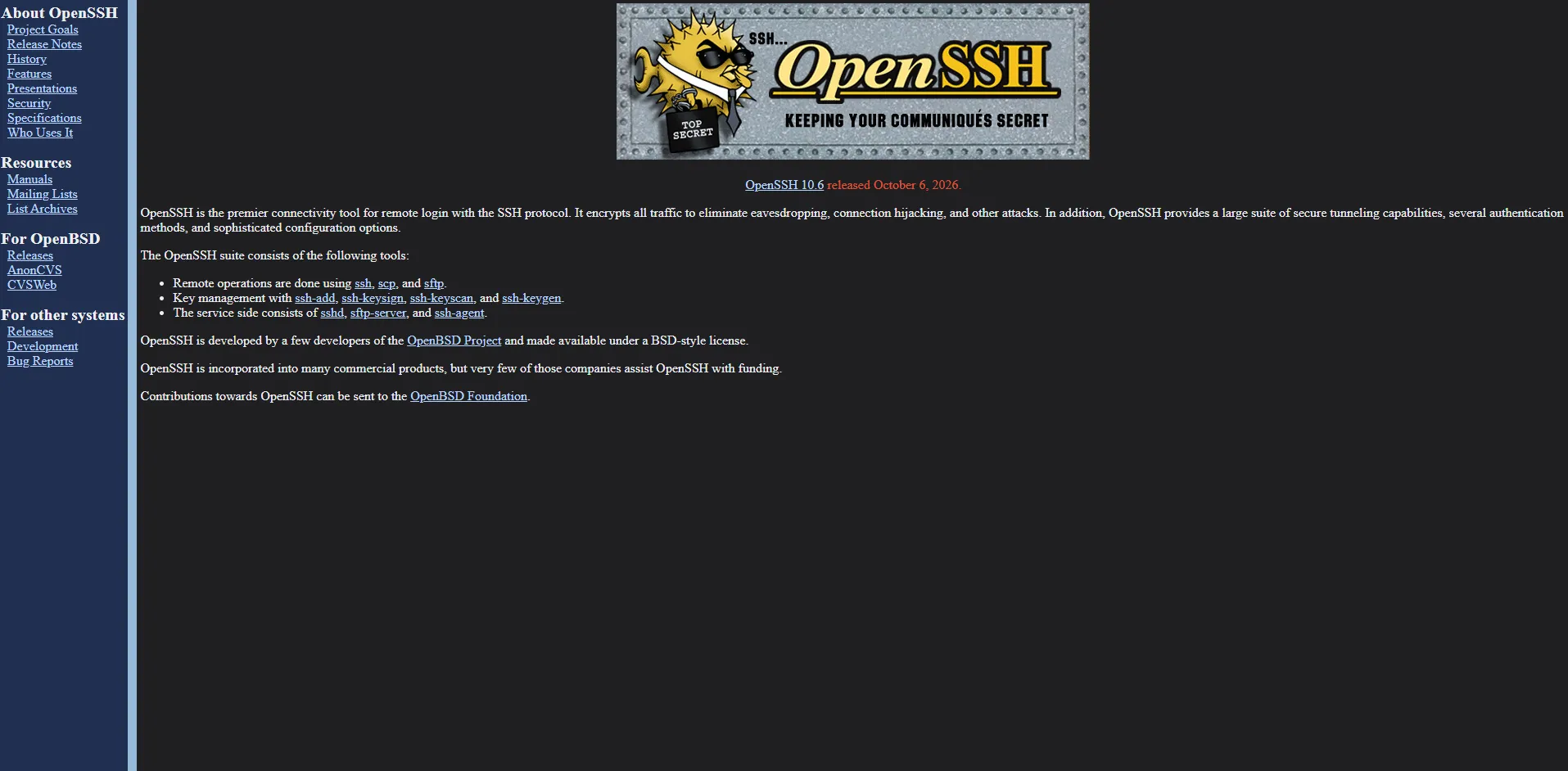
Start here before paying for anything. Windows Terminal is the window, tab and pane interface; OpenSSH is the ssh program that actually connects. You can use either PowerShell or Windows Terminal to start the same system SSH executable. The split matters: replacing your terminal emulator does not automatically replace SSH, and Windows Terminal does not add a graphical SFTP file manager. For connection setup and examples, see our PowerShell SSH walkthrough.
Windows Terminal + OpenSSH — the native command-line baseline without a built-in SFTP GUI.
Choose it if: you already know your SSH commands and want a free client for Windows without another account or subscription. It works well for occasional VPS access, scripts and jump-host configurations. Choose a graphical SSH client instead when you repeatedly move files, manage many saved hosts or need monitoring alongside the terminal.
Strengths
Works with portable SSH config aliases, ProxyJump and standard identity files
No third-party SSH dashboard or subscription
Good foundation for PowerShell, WSL and scripts
Trade-offs
Manual command-line host organization
File transfers use separate CLI tools
No integrated graphical server file tree or monitoring
3. PuTTY — Best Lightweight Free SSH Client
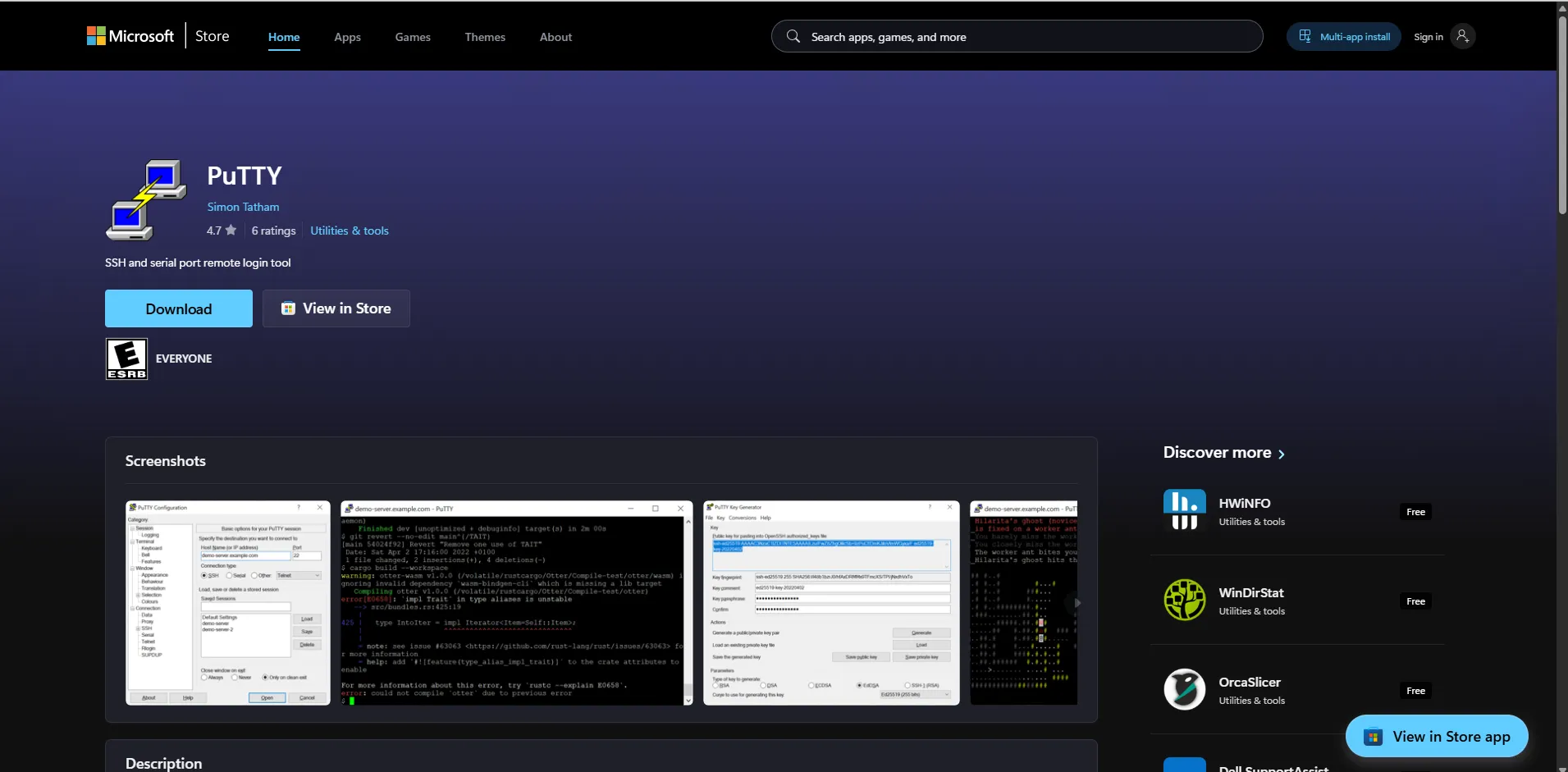
PuTTY keeps the familiar connection-dialog-plus-terminal workflow. Its saved session profiles are useful for users who do not want to edit OpenSSH configuration files, and the accompanying PuTTYgen and Pageant tools handle SSH keys and agent workflows. PSFTP and PSCP are separate command-line programs; the main PuTTY terminal is not a dual-pane transfer manager. For a closer look at tabbed alternatives, graphical SFTP and session migration, see our PuTTY alternatives comparison.
PuTTY — a traditional SSH session and terminal interface.
Choose it if: you want a dependable, lightweight Windows SSH client for one-off administration, serial connections or saved SSH sessions. PuTTY does save named connection profiles; it simply does not offer the tabbed server dashboard or built-in graphical file manager found in some newer clients. Its registry-based session metadata is not the same thing as storing unprotected private keys.
Strengths
Free and widely documented
Straightforward saved profiles, SSH tunnels and serial access
Suitable for portable, minimal remote access
Trade-offs
No native tabbed multi-server workspace
SFTP is a different command-line utility
Saved PuTTY profiles are not automatically OpenSSH config entries
4. Bitvise SSH Client — Best Free SSH + GUI SFTP
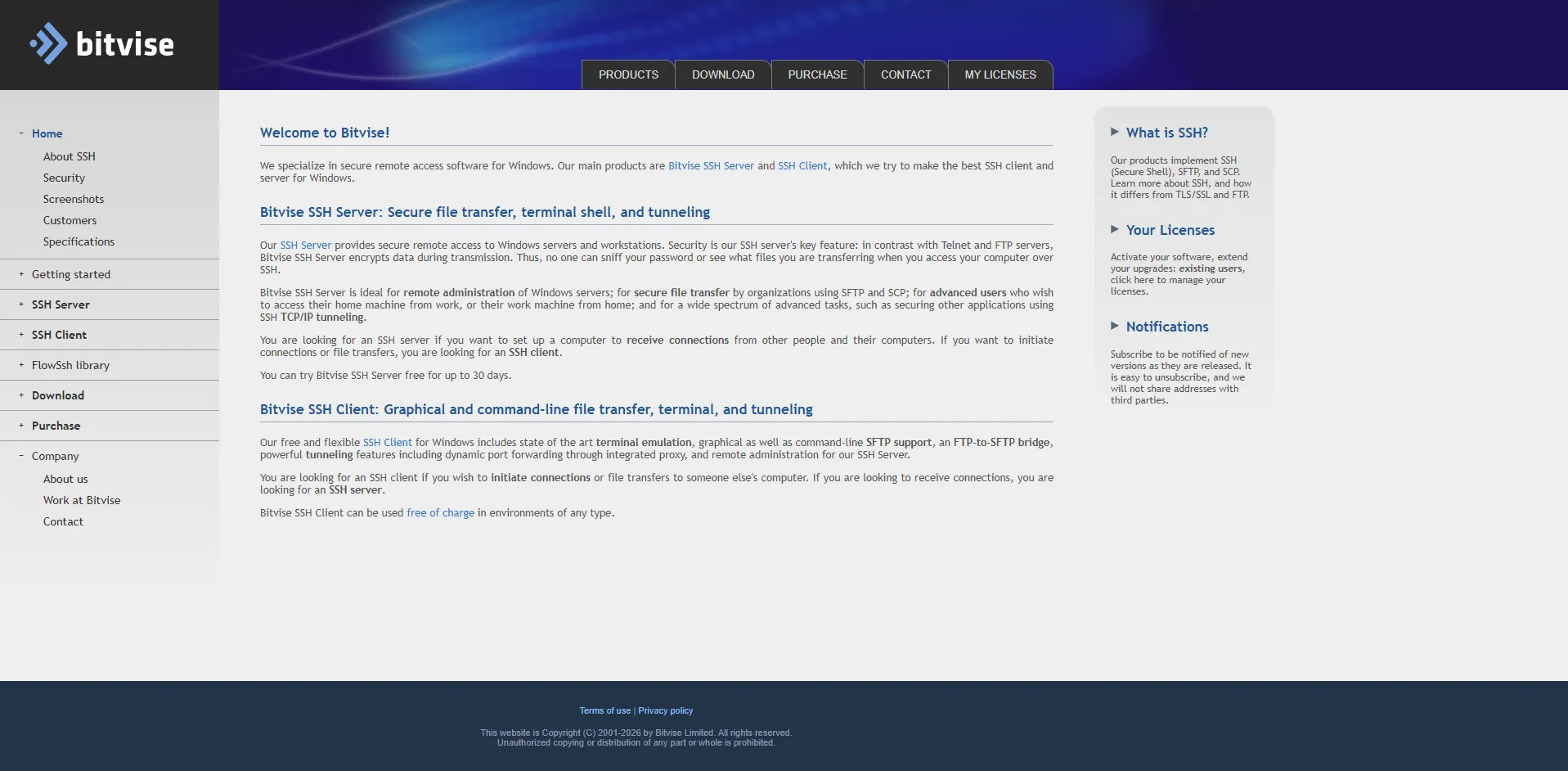
Bitvise combines an SSH terminal, a graphical SFTP client, and forwarding controls in one Windows-focused application. Its real competitive advantage is not a flashy dashboard: the vendor explicitly permits free use in all kinds of environments, including commercial settings. Optional paid client licenses chiefly change support and indemnification terms.
Bitvise — free Windows SSH client with a graphical SFTP workflow.
Choose it if: you want a GUI SSH client for Windows with free graphical SFTP, flexible SSH tunneling and no paid client license requirement. Bitvise is a strong fit for developers who regularly transfer files and forward ports. Choose a different tool if your priority is a consolidated workspace with monitoring, a code editor and multiple project views.
Strengths
Graphical SFTP without a subscription
Local, remote and dynamic forwarding scenarios
Clearly documented free commercial-use licensing
Trade-offs
Windows-only UI
Separate windows rather than an integrated development workspace
Not intended as a graphical multi-cloud file browser
5. MobaXterm — Best Multi-Protocol Windows SSH Client
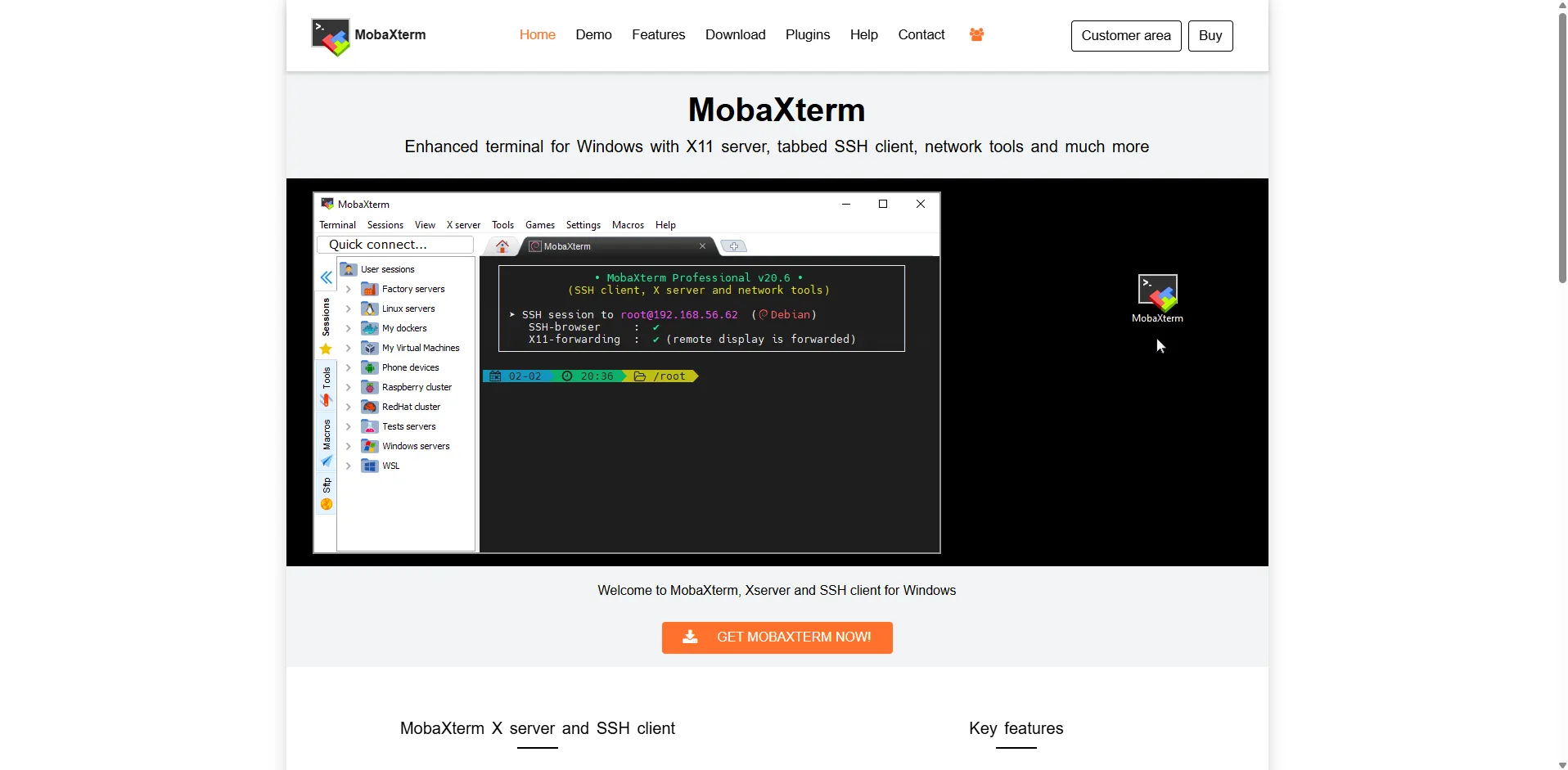
MobaXterm gathers SSH, an X11 server, RDP, VNC, an SFTP sidebar and many Unix-like utilities into one Windows environment. This makes it particularly attractive when your day mixes Linux shell work, graphical remote applications and Windows administration rather than pure SSH. If you are looking to replace that broader toolbox, our MobaXterm alternatives guide compares the trade-offs in more depth.
MobaXterm — SSH sessions alongside an SFTP browser and other remote protocols.
Choose it if: your Windows administration day mixes SSH sessions with RDP, VNC, X11 applications and file transfers. Its breadth is the main advantage, particularly when one client needs several remote-access protocols. Check Home versus Professional terms before an organizational deployment; licensing rights and edition limits matter more than simply seeing “Free” on a comparison chart.
Strengths
SFTP browser next to terminal
Embedded X server and other remote protocols
Portable edition and substantial free feature set
Trade-offs
Windows only
Home edition limits and organizational deployment conditions
Less focused on per-server code/database workspaces
6. Tabby — Best Open-Source SSH Terminal
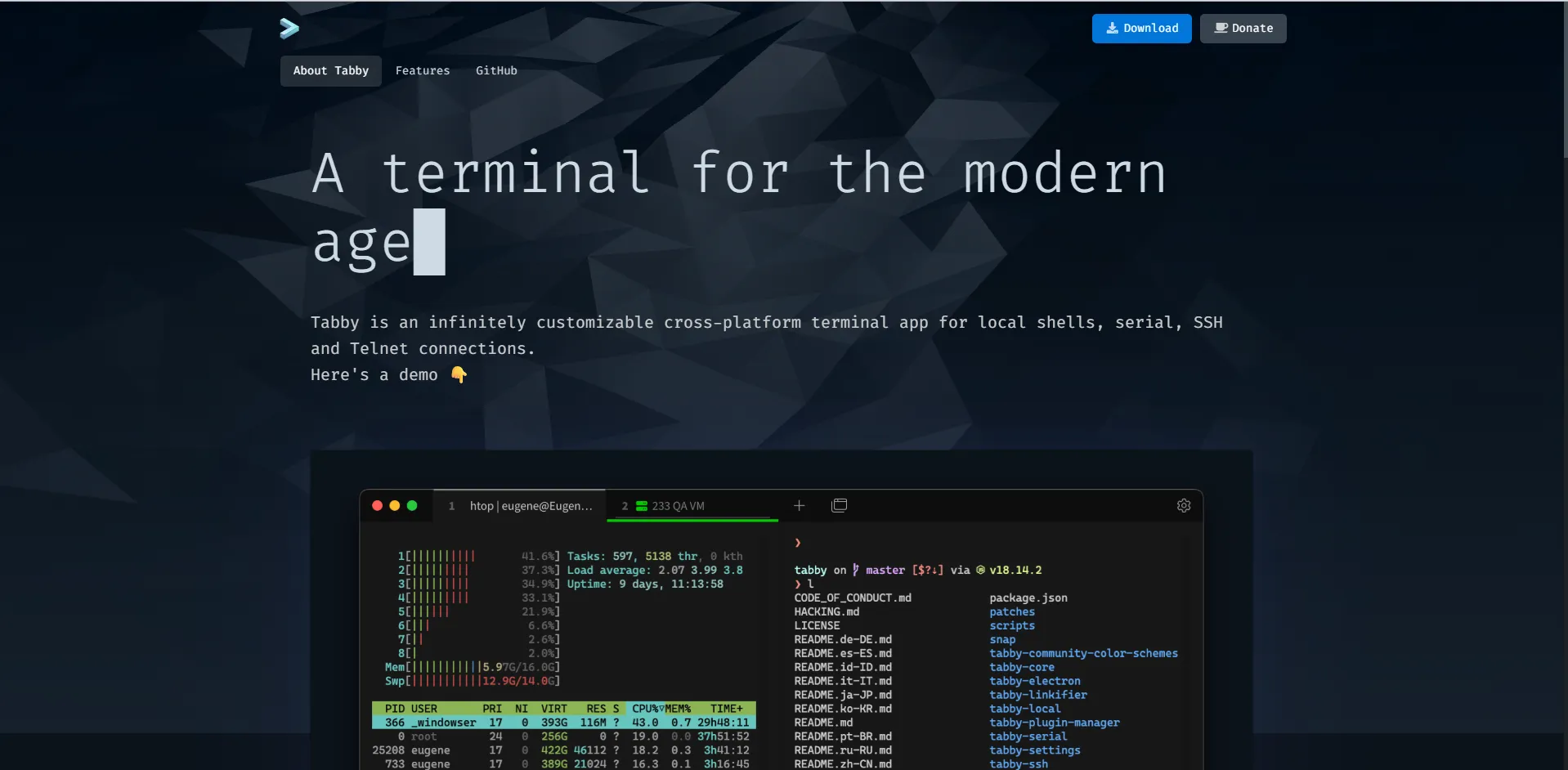
Tabby is a modern terminal emulator with integrated SSH, configurable tabs, nested panes, profiles and plugins. It is an actual SSH client rather than a plain command window, but its appeal is terminal customization—not providing a full file-management and monitoring platform.
Tabby — configurable terminal tabs and an integrated SSH client.
Choose it if: you want an open-source SSH client with tabs, split panes, themes and customizable shortcuts. Tabby is attractive for terminal-first users who like control over their environment. Graphical SFTP tabs may require the sftp-tab plugin; check the feature or plugin used by your build. It is less suitable if you want server monitoring, database views and remote files bundled as one workspace.
Strengths
MIT-licensed and cross-platform
SSH manager, forwarding and jump-host features
Custom themes, plugins, split panes
Trade-offs
Project acknowledges it is not lightweight
SFTP experience depends on the selected feature/plugin workflow
No built-in VPS monitoring or remote database manager
7. Termius — Best Cross-Device SSH Client
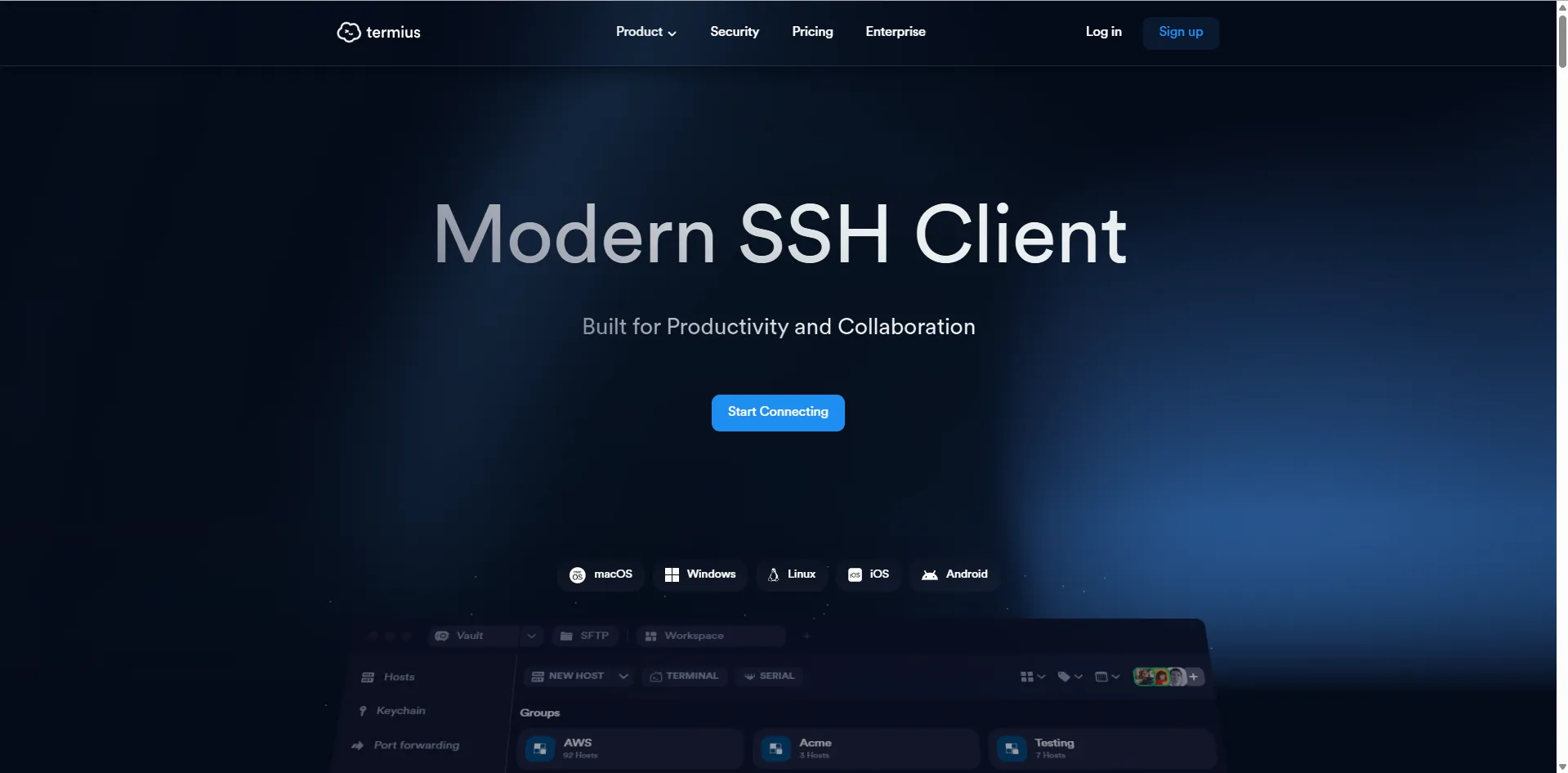
Termius earns its place through polished host management and access across desktops and phones. Its Starter plan now includes a local vault, SSH, SFTP, port forwarding and AI-powered autocomplete; cloud vault synchronization between devices is a paid feature. Do not describe the free tier as SSH-only. If you are considering a switch away from its vault and synchronization model, our Termius alternatives guide compares the practical trade-offs.
Termius — host organization and desktop/mobile SSH access.
Choose it if: you connect from Windows and also want a familiar SSH experience on macOS, Linux or mobile. The free Starter plan includes a local vault, SSH, SFTP and port forwarding; paid synchronization is valuable only if you actually need hosts across devices. Compare that convenience with a local-first desktop workflow rather than assuming cloud storage is inherently insecure.
Strengths
Apps for desktop and mobile
Free SSH and SFTP essentials
Paid synchronization and collaboration for users who need them
Trade-offs
Cloud sync and advanced team workflows are subscription features
Account-centric product design may not suit everyone
Less useful than file-centric utilities for specialized transfer automation
8. SecureCRT — Best for Network Engineers and Automation
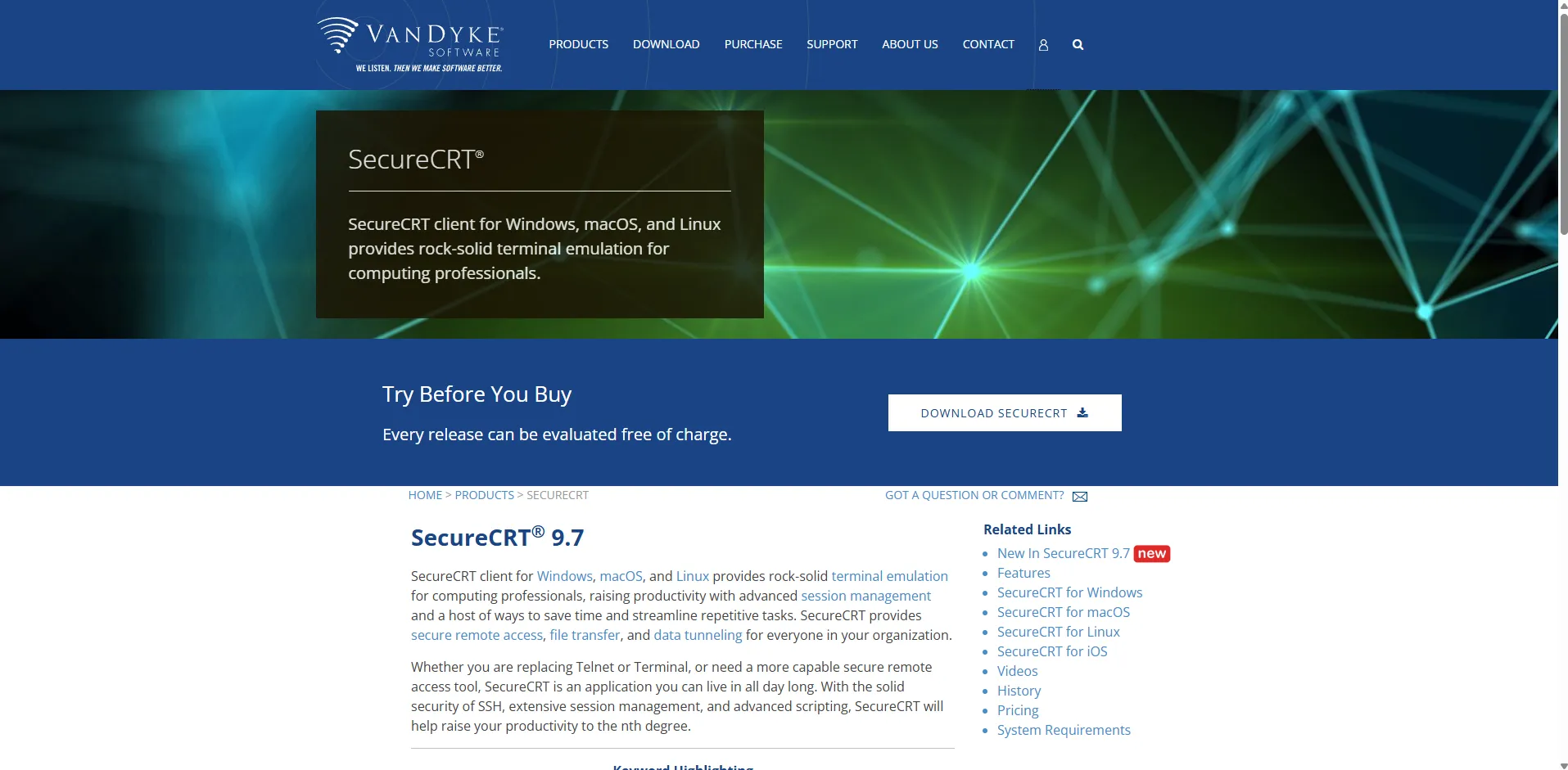
SecureCRT is designed for people who stay in terminal sessions all day: network engineers, operations teams and administrators who rely on scripting, custom key mappings and exact terminal emulation. It supports tab groups, command manager, automated scripts and advanced authentication options.
SecureCRT — professional session management and terminal automation.
Choose it if: terminal emulation, managed session folders, repeatable scripts and network equipment are central to your work. SecureCRT handles SFTP transfers, but the fully graphical file-manager experience is supplied by VanDyke's separate SecureFX product. That distinction—and the commercial license—is worth checking before treating it as a direct replacement for a free SFTP GUI.
Strengths
Session organization, scripting and terminal emulations
SSH security features including smart-card options
Integrated SFTP functions and SecureFX product integration
Trade-offs
Paid commercial licence
Full graphical file-transfer workflow is a distinct SecureFX product
More configuration than casual SSH users need
9. VS Code + Remote - SSH — Best for Remote Development
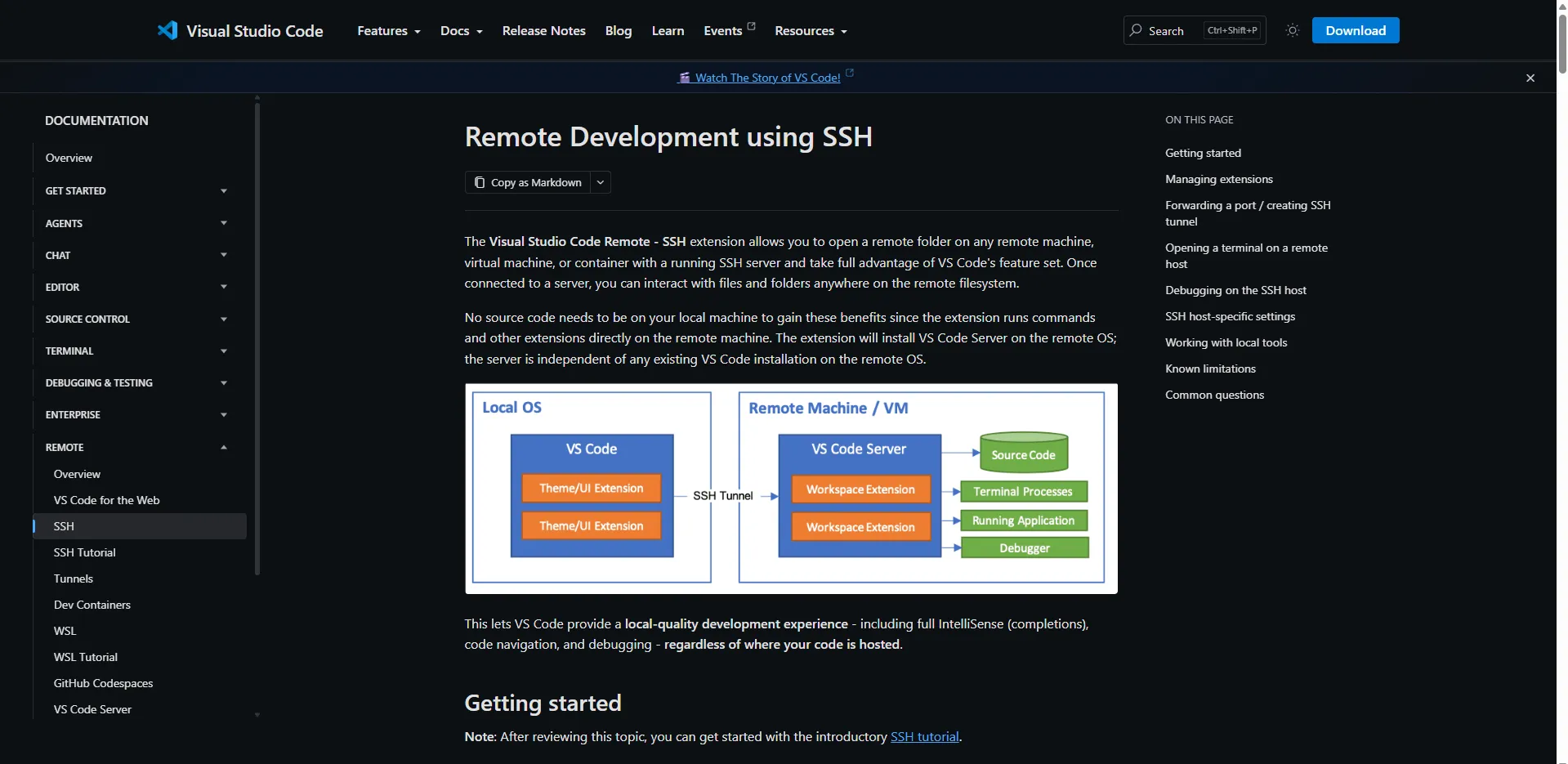
VS Code Remote - SSH is not a standalone SSH terminal client. It is a development workflow that connects using a local OpenSSH-compatible client, installs VS Code Server on the remote machine, and runs editing, extensions and debugging against remote code. Include it in a Windows SSH comparison because many developers are really asking how to edit a remote repository.
VS Code Remote - SSH — remote code workspace, not a general file-sync utility.
Choose it if: you need to open a remote repository, edit code and debug an application in a familiar IDE. VS Code Remote - SSH is often a better answer for development than buying a separate SSH client, but it has remote-host prerequisites and installs VS Code Server. It is not designed as a general-purpose SFTP synchronization tool or multi-VPS administration dashboard.
Strengths
Real code navigation, completion and debugging on the remote project
SSH config integration and remote terminal
Familiar IDE for remote development
Trade-offs
Remote VS Code Server installation and host prerequisites
Not designed as a general SFTP transfer client or VPS dashboard
Overkill when you only need a shell or transfer a file
10. WinSCP — Best Free SFTP and File Synchronization
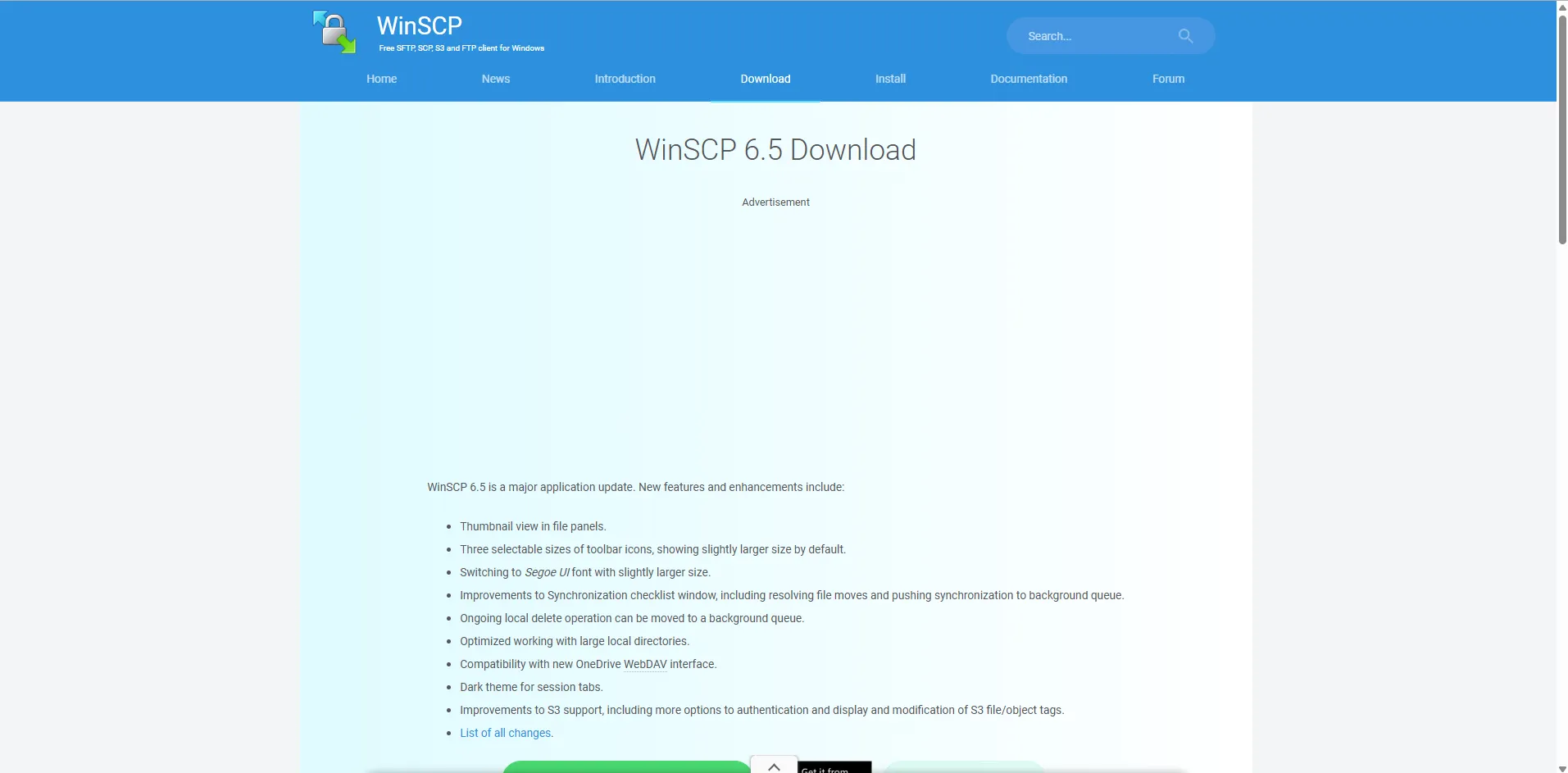
WinSCP belongs in the comparison even though its primary purpose is SFTP/SCP file transfers rather than interactive terminal sessions. It handles transfer queues, file synchronization, scripting, remote file edits and a range of server/storage protocols. It can hand off interactive shell access to PuTTY. For other file-transfer options, see our WinSCP alternatives guide.
WinSCP — graphical SSH-based transfers and synchronization, not a terminal replacement.
Choose it if: your main job is uploading a site, synchronizing directories or automating file transfers on Windows. It is one of the strongest free SFTP-first options and can invoke PuTTY for an interactive shell. For users who spend more time executing remote commands, monitoring servers or switching terminal sessions, a dedicated SSH client is the better starting point.
Strengths
Excellent SFTP GUI with sync and scripting
No paid tier required for core transfers
Useful for backup, deployment and website maintenance
Trade-offs
Full SSH terminal is not its primary UI
Windows only
Not an integrated server monitoring or multi-terminal workspace
Best free SSH clients for Windows vs paid alternatives
If all you need is a secure shell, you probably do not need to pay. The best free SSH client for Windows depends on whether you want a terminal, a built-in SFTP browser or more than one remote protocol.
01
Free · Terminal-first
Free SSH clients for Windows
Windows Terminal + OpenSSH and PuTTY cover everyday SSH access. Tabby adds a customizable tabbed terminal.
Best for everyday shell access
02
Free · Graphical files
Free SSH clients with SFTP
Bitvise offers free SSH and GUI SFTP, including commercial client use. WinSCP specializes in file transfers; MobaXterm Home adds a wider toolkit, subject to its limits.
Best for file transfers and GUI access
03
Paid · Advanced workflows
Paid SSH client alternatives
Termius Pro adds synced vaults; SecureCRT focuses on professional terminal workflows; ShadeTerm combines per-server terminals, SFTP, editing and monitoring after its trial.
Best for specialized or frequent work
SSH client security on Windows: what actually matters?
Choosing a secure Windows SSH client is about more than encryption. Compare how each app handles authentication, credentials and remote actions:
01
Identity
Host-key verification
The client should let you verify server identity and warn when a previously trusted host key changes.
02
Credentials
SSH key and password storage
Check what stays on your device, what is protected in an OS vault, and what—if anything—syncs to a cloud account. For key-based authentication setup, read our SSH private key guide.
03
Connections
SSH agents and port forwarding
Check support for your key formats, bastion hosts and tunnels. Avoid enabling agent or port forwarding when you do not need it.
04
Files
Remote file editing
Consider how an SSH client handles file saves, permissions and conflicts on production servers.
05
Automation
AI command approval
Verify whether suggested commands require your approval before execution. Do not assume all AI assistants behave alike.
Which SSH client for Windows is best for your workflow?
Scenario
Recommended starting point
Why / when to choose another
Connect to one VPS once a week
Windows OpenSSH or PuTTY
Free and uncomplicated; add a GUI only if you need it
Administer ten Linux servers daily
ShadeTerm, MobaXterm or SecureCRT
Choose workspaces, multi-protocol admin, or deep scripting respectively
SSH and graphical SFTP at zero software cost
Bitvise
WinSCP is stronger for file sync than terminal sessions
Mobile SSH and synced host lists
Termius
Paid sync is meaningful for cross-device users
Network device console / serial sessions
SecureCRT or PuTTY
Terminal emulation and serial support matter more than AI
Edit/debug a remote repository
VS Code Remote - SSH
Requires a compatible host and installed remote component
Customize a daily terminal
Tabby
Open source and many UI options; monitor plugin needs
Upload/sync websites or backups
WinSCP
Best seen as a file-transfer tool; can launch PuTTY for shell work
Use X11 and RDP with Linux SSH
MobaXterm
Contains multiple remote access protocols in one Windows toolbox
The best Windows SSH client for multiple servers is not necessarily the best free client for one-off connections. Write down the three tasks you repeat most—connecting, transferring files, editing code, troubleshooting, or forwarding ports—and choose the tool that reduces friction without sacrificing required controls.
Conclusion: the best SSH client for Windows depends on your work
For a one-off connection, the best SSH client for Windows may simply be OpenSSH or PuTTY. For the strongest no-cost SSH-plus-SFTP combination, start with Bitvise; for a toolbox including X11, RDP and VNC, consider MobaXterm. If mobile synchronization matters, Termius is a better match; if working in a remote project is the goal, VS Code Remote - SSH offers a real development environment.
If you want a Windows SSH client for multiple servers and regularly switch from terminal to SFTP, code editing, monitoring and database tasks, ShadeTerm is designed around that per-server workflow. It is not a universal replacement for SecureCRT’s specialized terminal emulation, WinSCP’s mature transfer automation.
Manage your servers in one place
Your terminal, SFTP files, code editor, and server monitoring in one workspace.
For basic SSH sessions, Windows Terminal + OpenSSH or PuTTY is a good free starting point. For graphical SFTP, Bitvise is a strong free choice. For multiple-server workspaces, compare ShadeTerm, MobaXterm and Termius according to the features you actually need.
What is the best free SSH client for Windows?
PuTTY and Windows OpenSSH are reliable free SSH clients for terminal access. Bitvise adds a graphical SFTP client; Tabby offers an open-source tabbed terminal; MobaXterm Home includes several remote-access protocols subject to its license terms.
Which Windows SSH clients have a GUI and SFTP file manager?
Bitvise, MobaXterm, Termius and ShadeTerm offer graphical file workflows. WinSCP focuses on SFTP transfers and synchronization. Tabby supports SFTP, with the available interface depending on the SSH workflow and installed components.
Is PuTTY still a good SSH client for Windows in 2026?
Yes, particularly for lightweight shell or serial access. It supports saved sessions and SSH tunneling, but does not provide native terminal tabs or an integrated graphical SFTP browser.
Does Windows 11 already include an SSH client?
OpenSSH Client is installed or available as an optional Windows feature on supported builds. Use ssh -V in PowerShell to check. Windows Terminal provides the window and tabs; OpenSSH establishes the SSH connection.
Is MobaXterm better than PuTTY?
MobaXterm is more convenient when you need multiple protocols, tabs, X11 and an SFTP browser. PuTTY is simpler and remains a good choice when you only need occasional SSH or serial connections.
Which SSH client is best for managing multiple VPS servers?
ShadeTerm organizes terminal tabs, SFTP, editing and monitoring by server. MobaXterm provides broader remote-access protocols; SecureCRT prioritizes scripting and terminal management; Termius focuses on desktop and mobile host access.
Is there a free SSH client for Windows with port forwarding?
Yes. Windows OpenSSH and PuTTY support SSH tunneling, and Bitvise provides graphical forwarding controls. Check which kinds of forwarding and jump-host workflows you need before choosing an application.
Is Termius free for SSH and SFTP?
Yes. Termius lists SSH, SFTP, a local vault and port forwarding in its free Starter tier. Personal cloud-vault synchronization is a Pro feature; check the current pricing page for plan changes.
Is WinSCP a full SSH terminal replacement?
No. WinSCP is primarily an SFTP/SCP file-management and synchronization tool. It can integrate with PuTTY for interactive shell sessions but is not designed to replace a dedicated terminal workspace.
Can VS Code Remote - SSH replace an SSH client?
It can be an excellent way to edit and debug code on supported remote hosts, but it installs VS Code Server remotely and is not a general-purpose graphical SFTP client or SSH server dashboard.
Should I choose a free or paid SSH client for Windows?
Start free if you only need shell access or simple transfers. Consider paid products when you repeatedly need host organization, terminal scripting, cross-device synchronization, remote editing or integrated server-management workflows.
Official product references and pricing
Feature sets change. These official pages are the best starting point for validating Windows availability, licenses and product details: