
01 / FEATURE
Edit in place
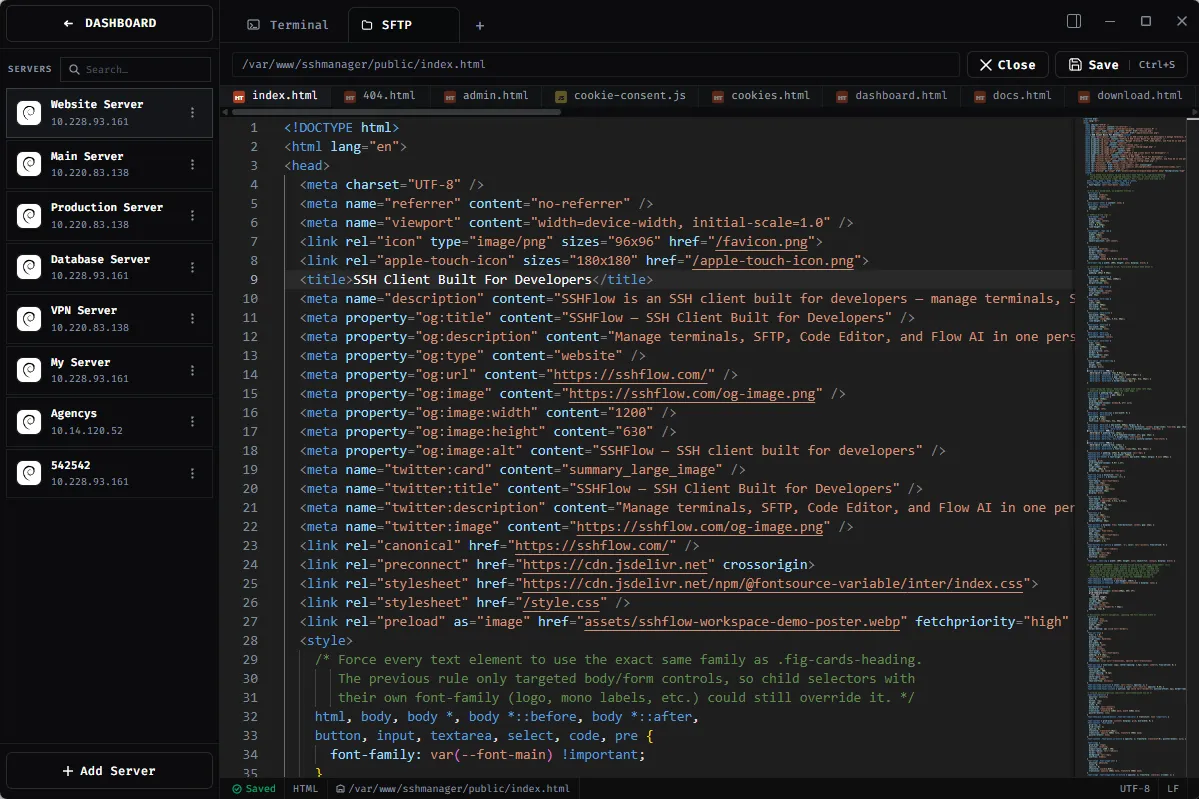
Open a file from SFTP and edit within the connected server workspace. Keep the file tree alongside the editor.
REMOTE CODE EDITOR / MONACO
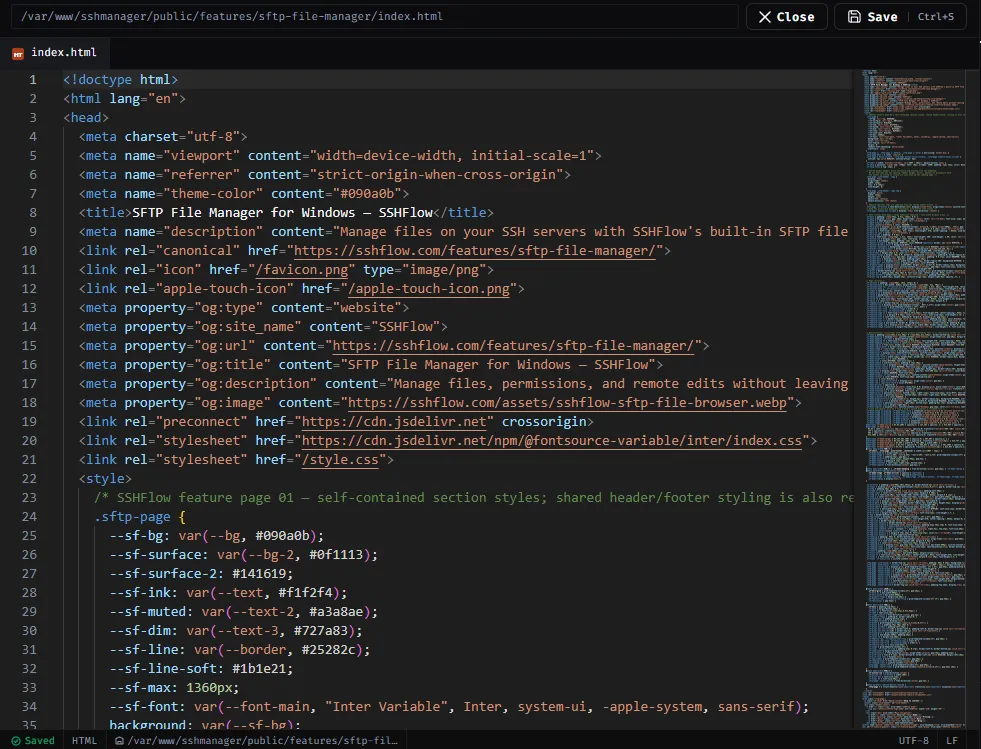
Open files over your existing SFTP connection and work in a Monaco-powered editor — without manually downloading and uploading every change.
01 / WHY IT MATTERS
ShadeTerm keeps your tools focused on a connection and the task you are doing — rather than adding more windows and manual steps.
Open a file from SFTP and edit within the connected server workspace. Keep the file tree alongside the editor.
Switch between multiple files from the same working directory rather than repeatedly navigating back to the file browser.
For editors such as VS Code, Zed or Neovim, ShadeTerm can open a remote file through a temporary local copy and sync edits back when saved.
SEE IT IN SHADETERM
Screens from ShadeTerm for Windows — the interface behind the workflow.
02 / IN PRACTICE
Designed around everyday developer tasks, not a dashboard of features you never use.
03 / WORKFLOW
A focused sequence you can follow in your own ShadeTerm workspace.
Open SFTP and navigate to a remote directory.
Open a file in the built-in Monaco editor or supported external editor.
Write the file back, then validate the result from Terminal.
04 / DETAILS
Practical limitations and useful details before you get started.
No. The built-in editor opens remote files through the connection and handles saving back to the server.
Yes. ShadeTerm supports opening remote files with an external editor and synchronizing saved edits.
No. Remote permissions still determine whether a save can succeed.
ShadeTerm / WINDOWS
Terminal, files, code and more — organized around your SSH connections.
Try ShadeTerm