
Files and terminal, side by side in your workflow
Keep multiple terminal and SFTP tabs within the same server workspace. Switch tasks without starting over in another tool.
SFTP File Manager · ShadeTerm for Windows
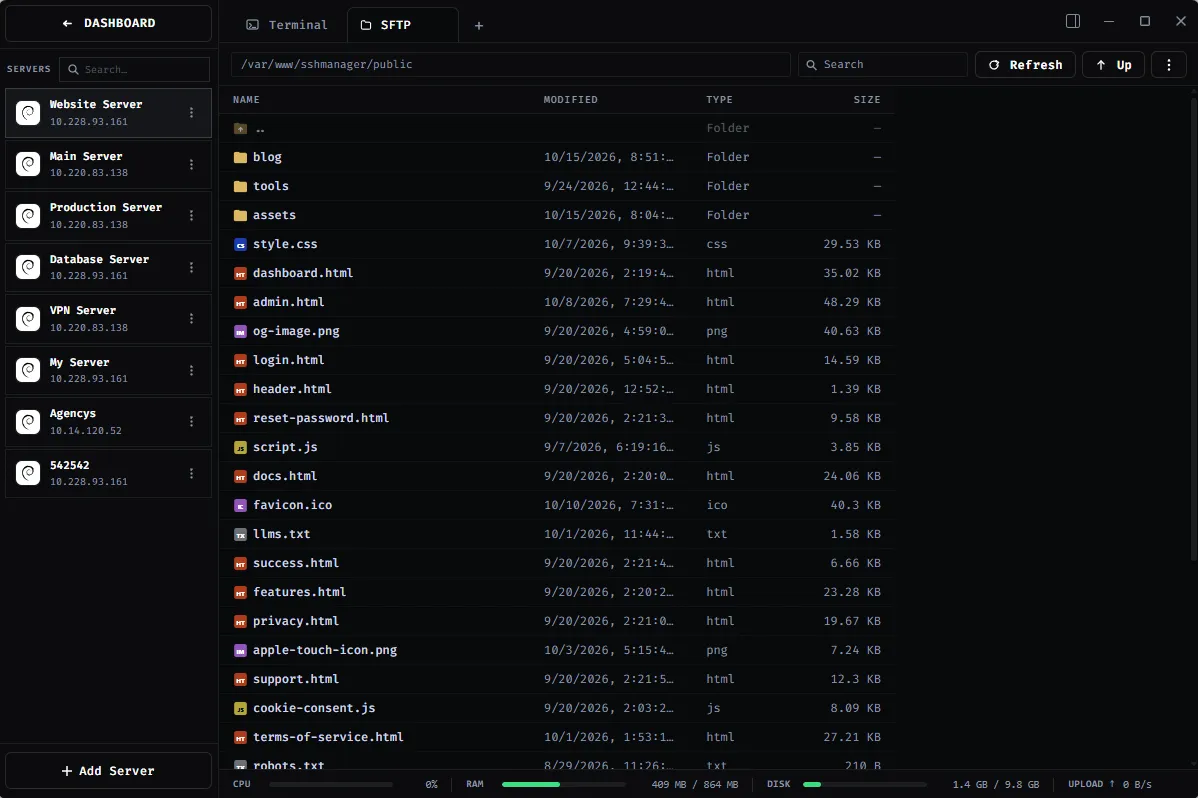
Browse remote files, upload folders, manage permissions, and open files for editing — all inside the same workspace as your SSH terminal.
01 / The difference
No separate SFTP window to match to the right host. ShadeTerm keeps the files, commands, and editor for each connection together.
Keep multiple terminal and SFTP tabs within the same server workspace. Switch tasks without starting over in another tool.
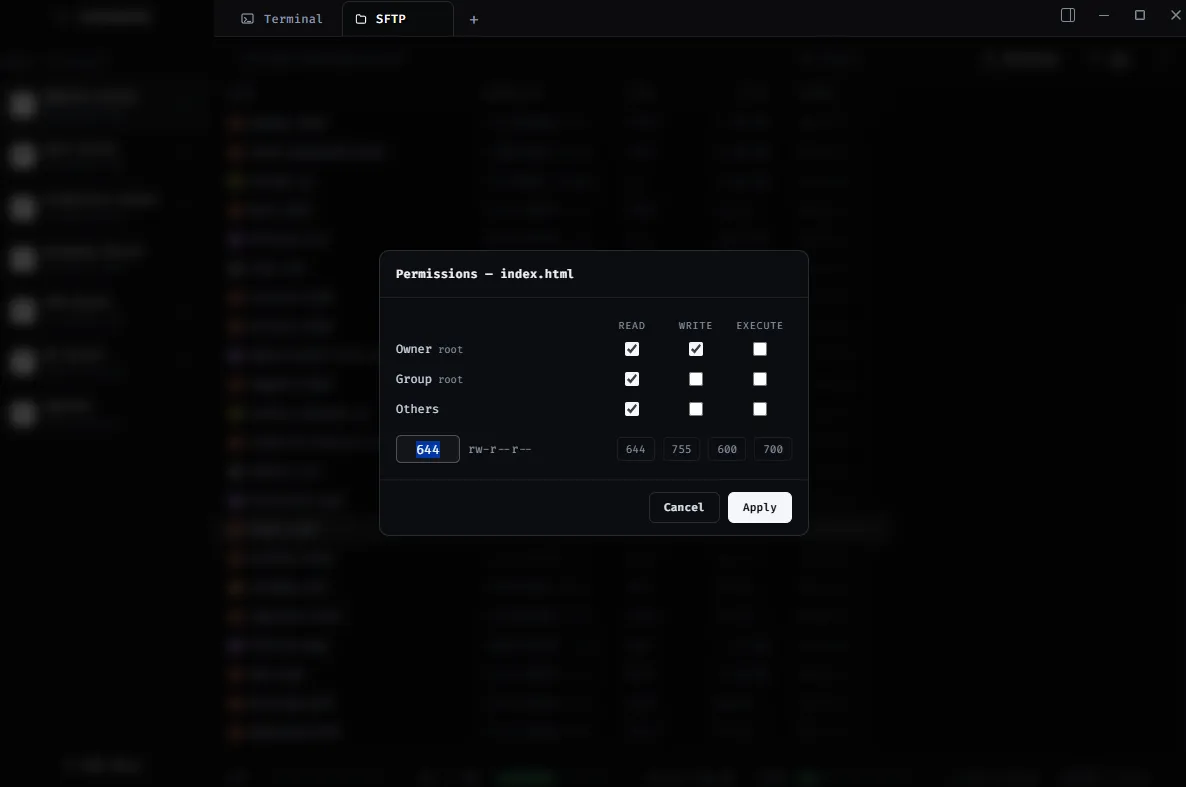
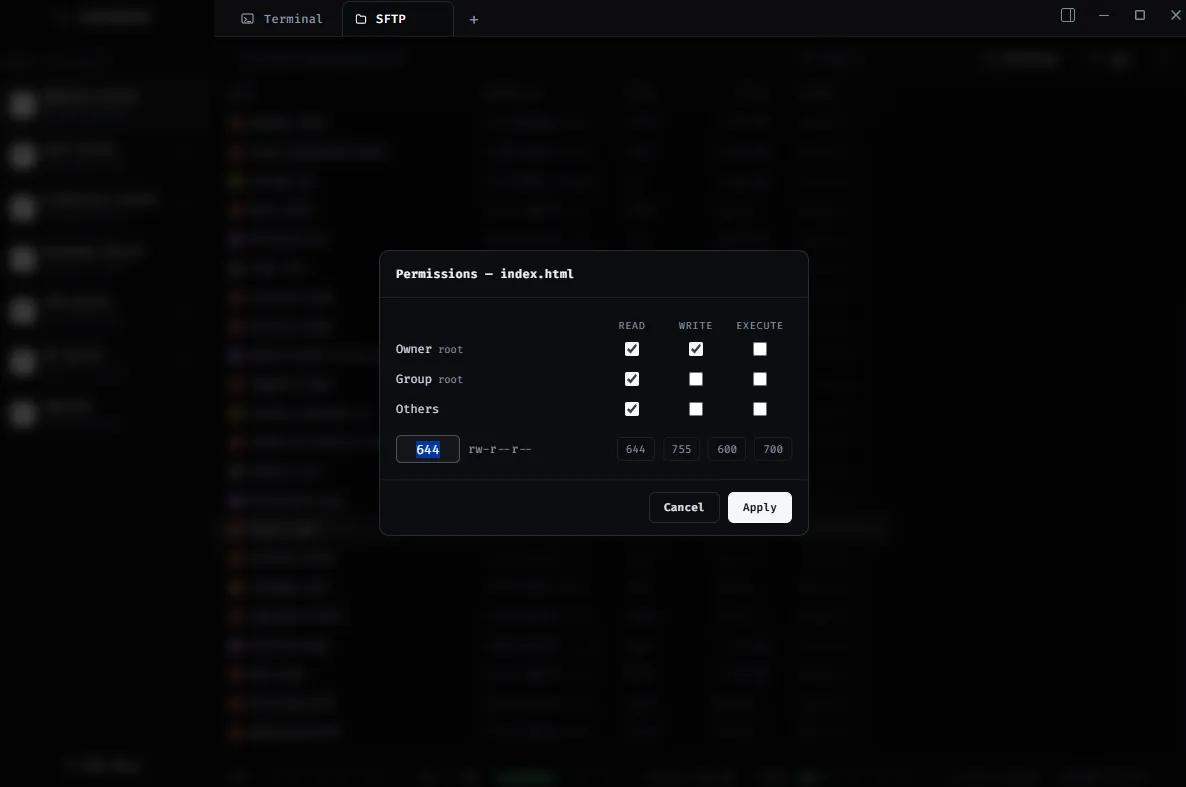
Search, preview, rename, move, and delete remote files. Inspect permissions and make changes when you need to.
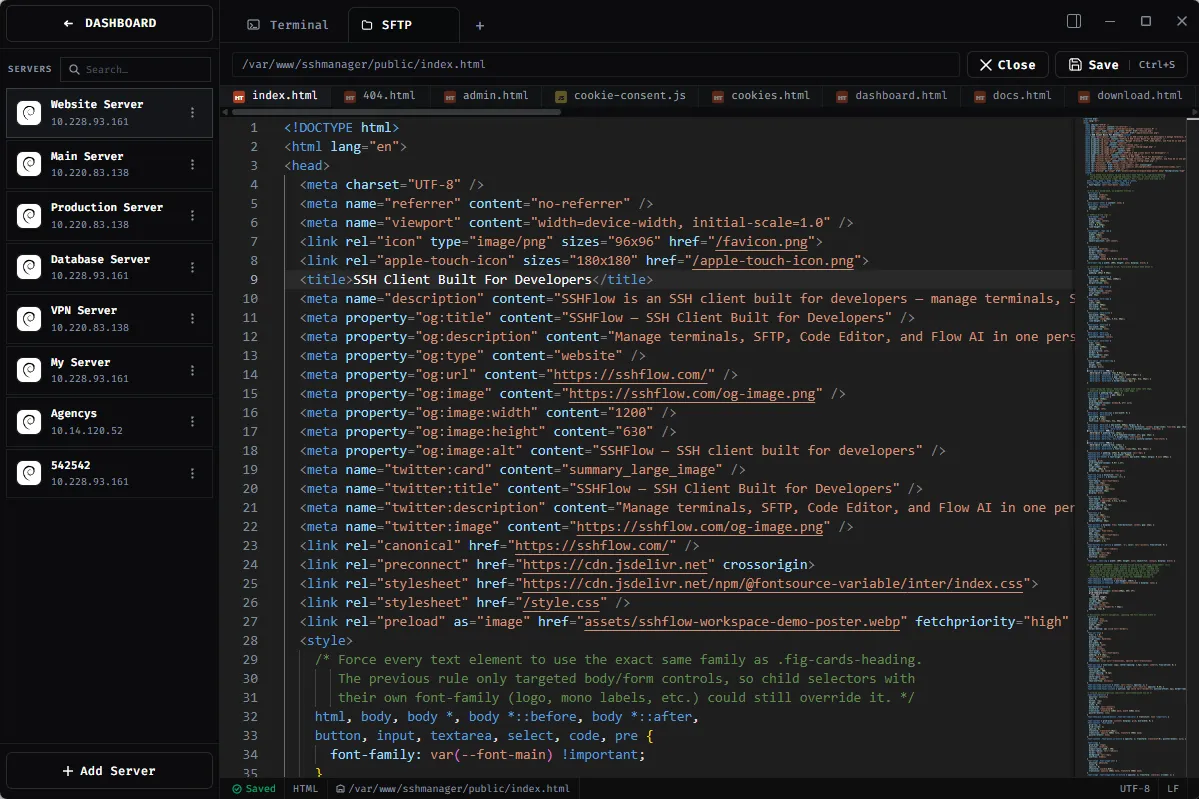
Send a file directly to the Monaco editor, or work in your preferred external editor with changes uploaded to the server.
02 / File operations
From a quick config change to moving an entire folder, the SFTP browser gives you the common file operations you need without leaving ShadeTerm.
DRAG & DROP / INTERACTION PREVIEW
Drag files from your desktop into SFTP. Watch the transfer finish without opening another application.
03 / Remote editing
Open a remote file from SFTP directly in ShadeTerm's code editor. Syntax highlighting and autocomplete make small edits easier; saving writes changes back to your server.
04 / How it works
Use your existing SSH server. ShadeTerm's SFTP browser opens from the same server workspace.
01 / CONNECT
Add a server using SSH credentials, a private key, or your existing SSH configuration.
02 / OPEN FILES
Browse the connected server's directories, search for a file, or drop in a local folder to upload.
03 / KEEP WORKING
Open a file in the editor, make the change, then switch back to your terminal in the same workspace.
SFTP runs over SSH. Your server must have the SFTP subsystem enabled; ShadeTerm does not require its own proprietary server agent.
SEE IT IN SHADETERM
Screens from ShadeTerm for Windows — the interface behind the workflow.
05 / Questions
Both. ShadeTerm is a desktop SSH client with a built-in SFTP file manager. Your terminals, file browser, and code editor live in the same server workspace.
No separate ShadeTerm server agent is required. You do need SSH access and a working SFTP subsystem on the remote server.
Yes. Open a file from the SFTP browser in ShadeTerm's built-in editor and save changes back to the server. You can also choose an external editor for supported workflows.
Yes. The SFTP browser supports file and folder uploads, and lets you inspect and change permissions and ownership where your remote account has the necessary rights.
ShadeTerm is currently available for Windows. Mac and Linux builds are planned; check the download page for availability.
ShadeTerm for Windows
Browse, upload, and edit server files without switching tools.