
01 / FEATURE
One server, many tasks
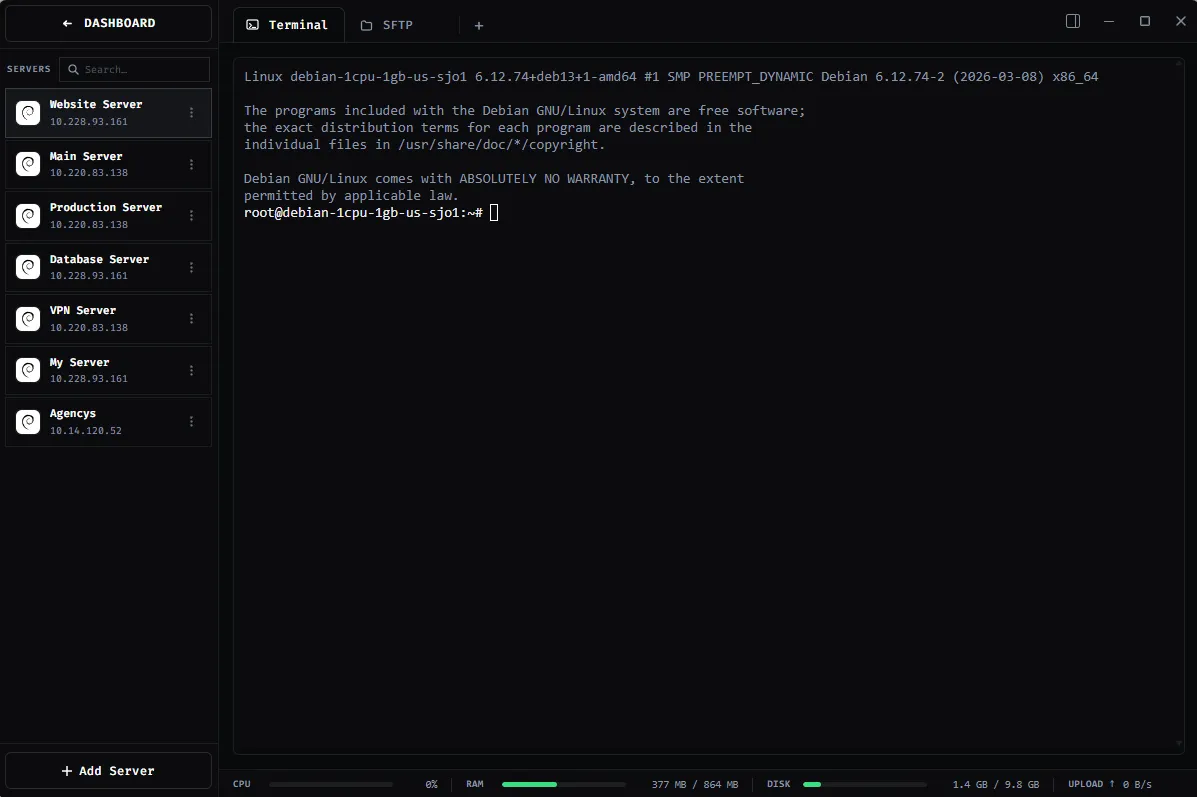
Keep a deployment command in one tab and follow application logs in another. You can return to either terminal without opening another server card.
SSH TERMINAL / WINDOWS
Keep deployments, log tails, and diagnostics in separate terminal tabs without losing track of which host you are working on.
01 / WHY IT MATTERS
ShadeTerm keeps your tools focused on a connection and the task you are doing — rather than adding more windows and manual steps.
Keep a deployment command in one tab and follow application logs in another. You can return to either terminal without opening another server card.
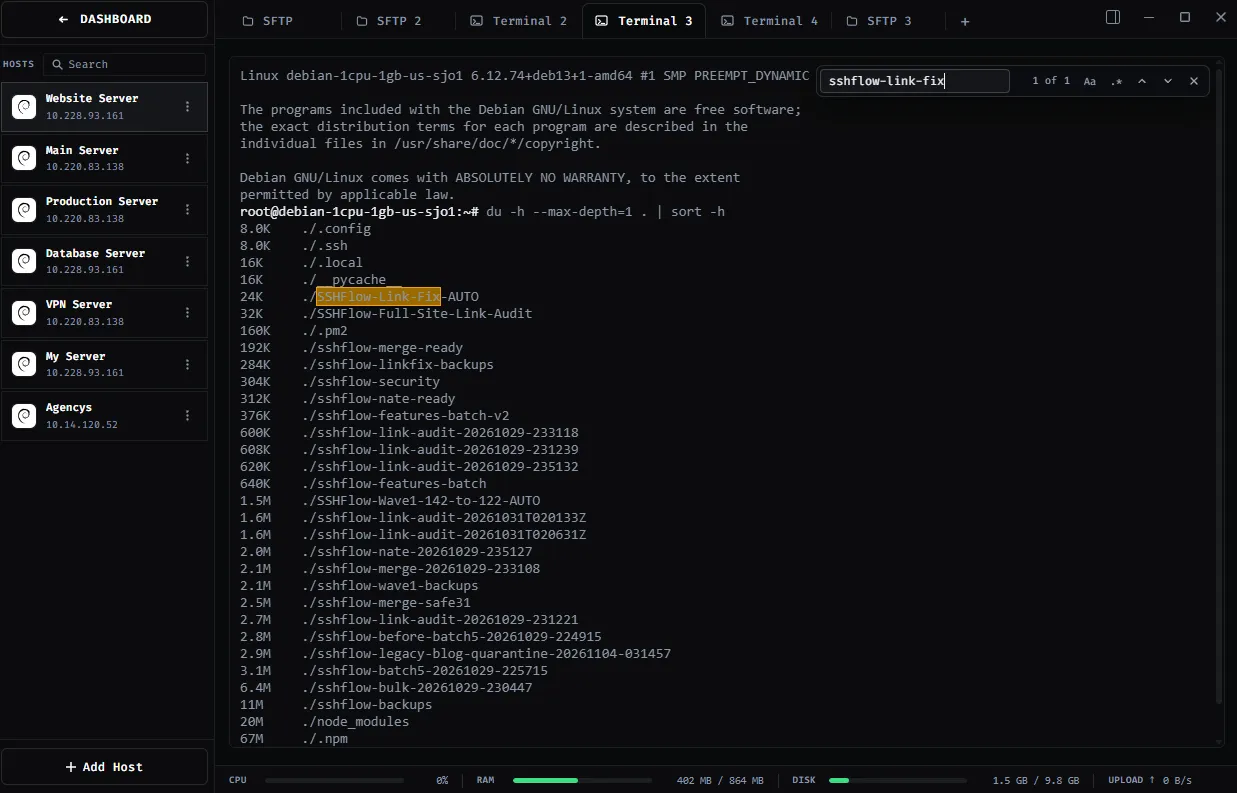
Search terminal output when a command produces more than a screenful of text. Keep diagnostics in the relevant server context.
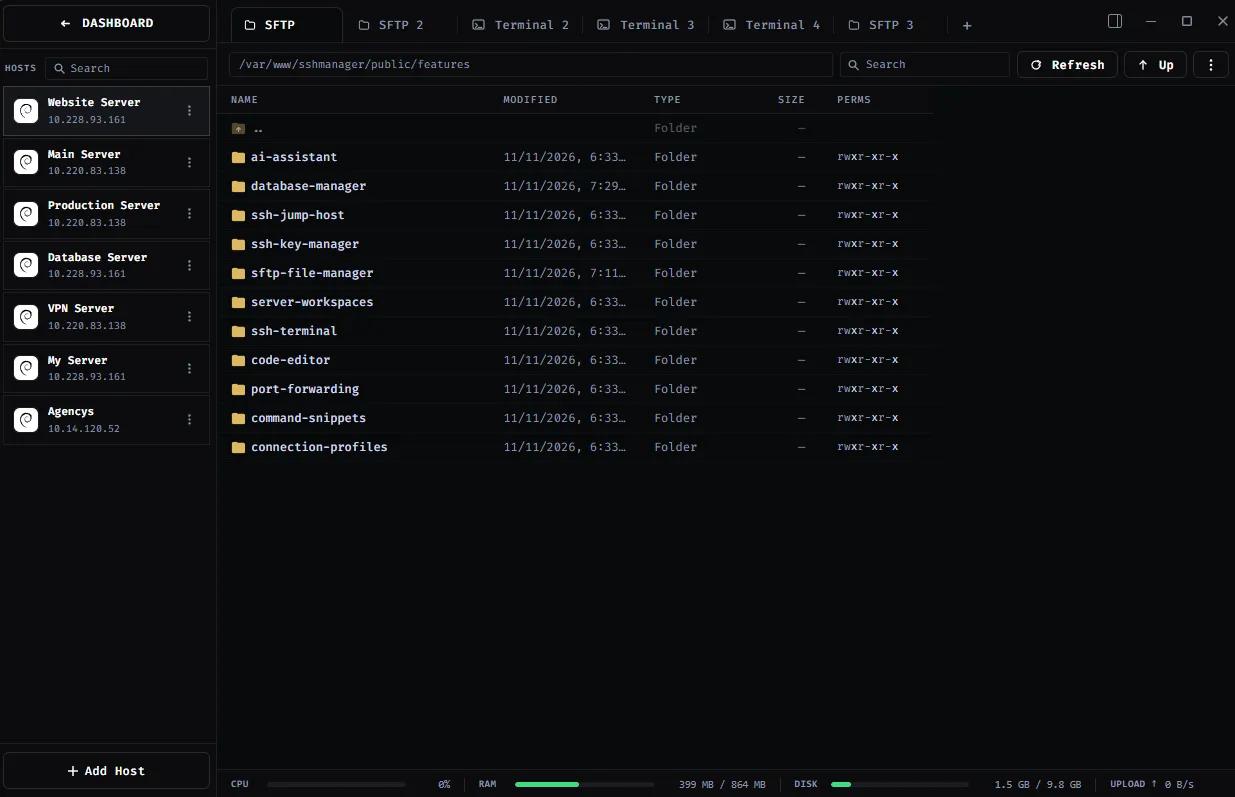
Open Files or Code next to terminal tabs when a command leads you to a configuration file that needs editing.
SEE IT IN SHADETERM
Screens from ShadeTerm for Windows — the interface behind the workflow.
02 / IN PRACTICE
Designed around everyday developer tasks, not a dashboard of features you never use.
03 / WORKFLOW
A focused sequence you can follow in your own ShadeTerm workspace.
Select a saved host and open its terminal.
Create terminal tabs for logs, deploy commands or diagnostics.
Switch to SFTP or Code without searching for the right server again.
04 / DETAILS
Practical limitations and useful details before you get started.
No. Tabs opened within a server workspace belong to that server. You can connect to a different host in its own workspace.
Yes. ShadeTerm supports multiple terminal tabs for a connected server.
Standard terminal access uses SSH, without a proprietary agent on the server.
ShadeTerm / WINDOWS
Terminal, files, code and more — organized around your SSH connections.
Try ShadeTerm